

What is Salesforce Maps?
Salesforce Maps is a dynamic tool designed to help sales teams and planners visualize, manage, and optimize their territories and routes. Here’s a deep dive into its core features, practical applications, and tips for getting the most out of the platform.
Key Features That Drive Results
Salesforce Maps is packed with features that make location-based data easier to understand, act on, and share. In this section, we’ll explore the tools that power day-to-day usage — from interactive map layers to a dynamic toolbar that helps teams quickly locate, filter, and engage with geographic data inside Salesforce.
Visualizing Data with Layers
At the heart of Salesforce Maps is the concept of “layers.” Layers allow you to plot records—such as accounts, leads, or opportunities—directly onto a map.
You can filter these records by object type and apply custom criteria, making it easy to focus on the data that matters most. For example, you might create a layer that displays only accounts with open opportunities, or filter leads by user ownership.
The image below showcases the Salesforce Maps sidebar, where users can access, organize, and manage layers.
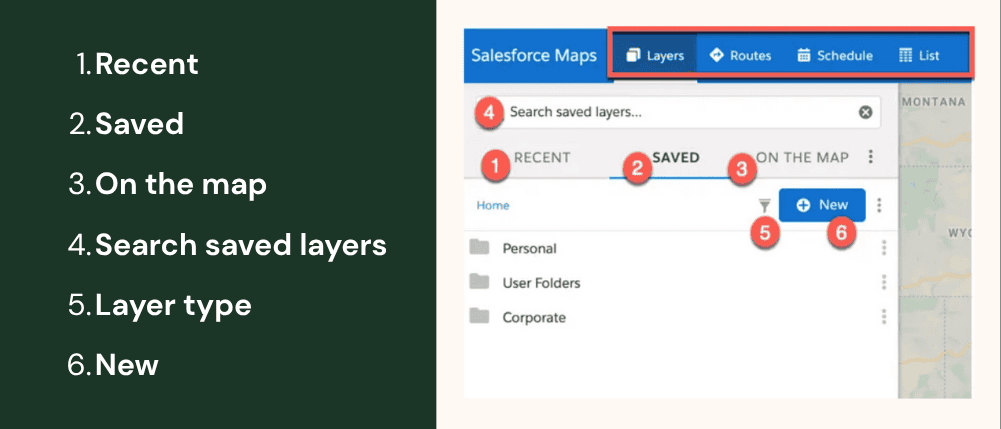
Here’s a quick reference to what each labeled section does:
- Recent: Displays up to five recently plotted layers and any layers that are set to plot on load.
- Saved: Provides access to folders, subfolders, and layers. Some users may not see personal and user folders.
- Personal folder: Contains private folders and layers unique to an individual user.
- User folder: Contains personal user folders and follows the Salesforce role hierarchy set forth in your Salesforce org.
- Corporate folder: A public folder, and access to subfolders are controlled by managed folder permissions.
- On the map: Displays all layers currently plotted on the map.
- Search saved layers: Search for any layer by name.
- Layer type: Displays all layer types that can be checked or unchecked.
- New: Displays layer creation options once a folder has been selected.
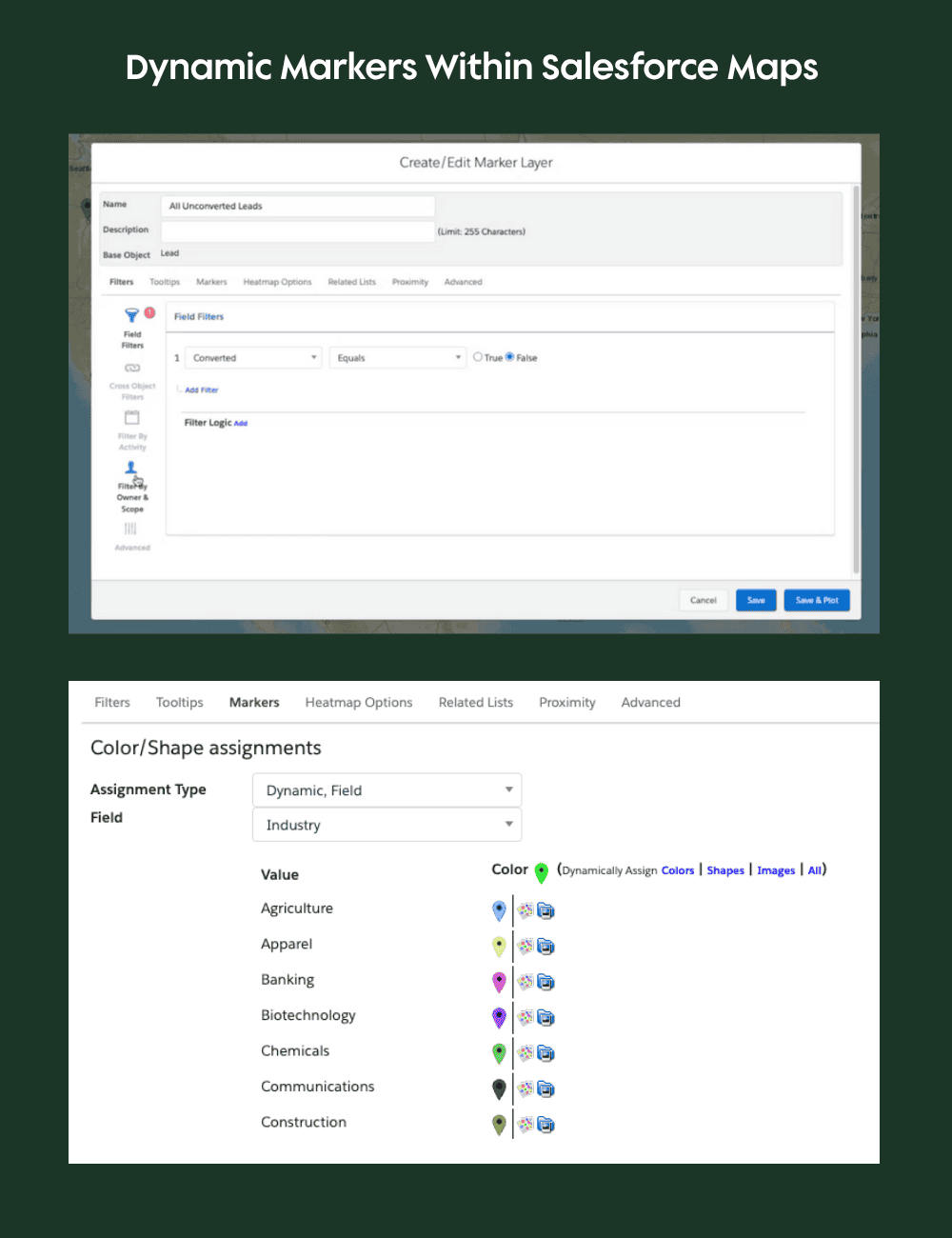
Markers within the Salesforce Maps feature can be dynamically colored based on fields like industry, giving you instant visual cues about your data distribution. Tooltips and editable fields let you update records right from the map, streamlining your workflow and keeping information current.
Toolbar Features for Smarter Map Interactions
After setting up your layers with the data you want to interact with, the Toolbar let’s you navigate and overlay additional information. The Salesforce Maps toolbar gives users access to map controls, drawing tools, and real-time overlay
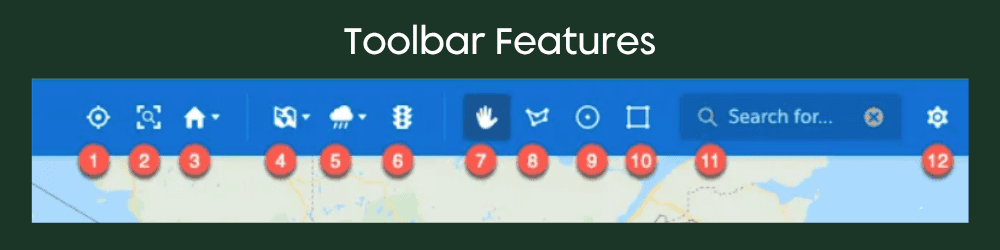
Here’s what each numbered item represents:
- My Position: Plots your current position.
- Zoom To Fit: Adjusts the map zoom level to display all markers currently plotted on the map.
- Home: Sets your default map view or lets you go to your default view.
- Map Types: Displays different map tiles types–such as Esri Street, Esri Topography, Esri Imagery, Google Road, Google Terrain, Google Hybrid, and Google Satellite–that can be set as default within the Salesforce Maps configuration menu for both the desktop and mobile experiences. The system default tile can be changed in the Salesforce Maps configuration menu.
- Weather: Lets users display different weather overlays.
- Show Traffic: Plots real-time traffic data.
- Move the map: Lets users change the map view by dragging the position of the map.
- Polygon: Lets users draw a freeform polygon.
- Circle: Lets users draw a circle on the map through click-and-drag functionality.
- Rectangle: Lets users draw a rectangle on the map through click-and-drag functionality.
- Point of Interest Search: Searches points of interest, records in marker layers, and records in Salesforce. Searching features are controlled in the Salesforce Maps configuration menu under Global Search settings.
- Setting Gear icon: Manages default settings for routes and schedule, list view, and Salesforce Maps Data.
Route and Territory Management in Salesforce Maps
When teams are constantly on the move, precision matters. Salesforce Maps helps teams stay organized and efficient with powerful tools for both route planning and territory management. Whether you’re mapping out a day of customer visits or redefining regional ownership after a business shift, Maps offers a visual, intuitive interface that simplifies the process and boosts productivity.
Route Planning
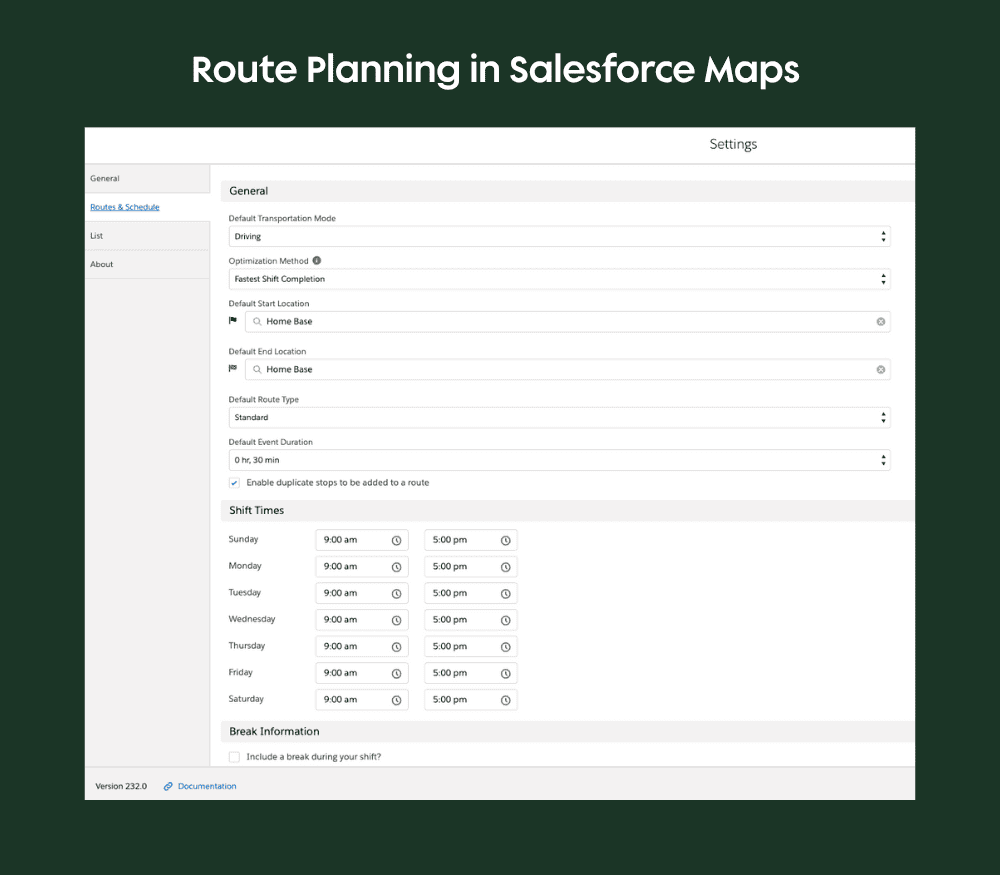
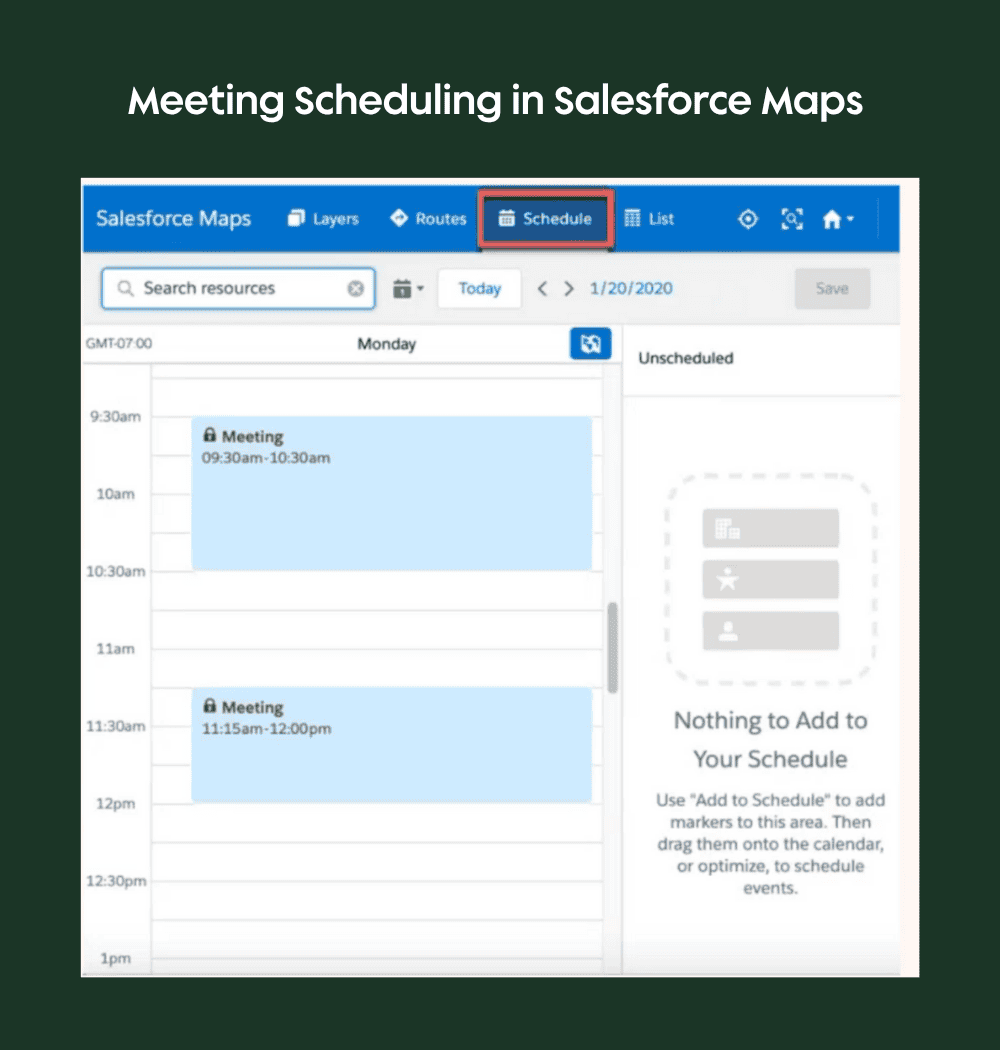
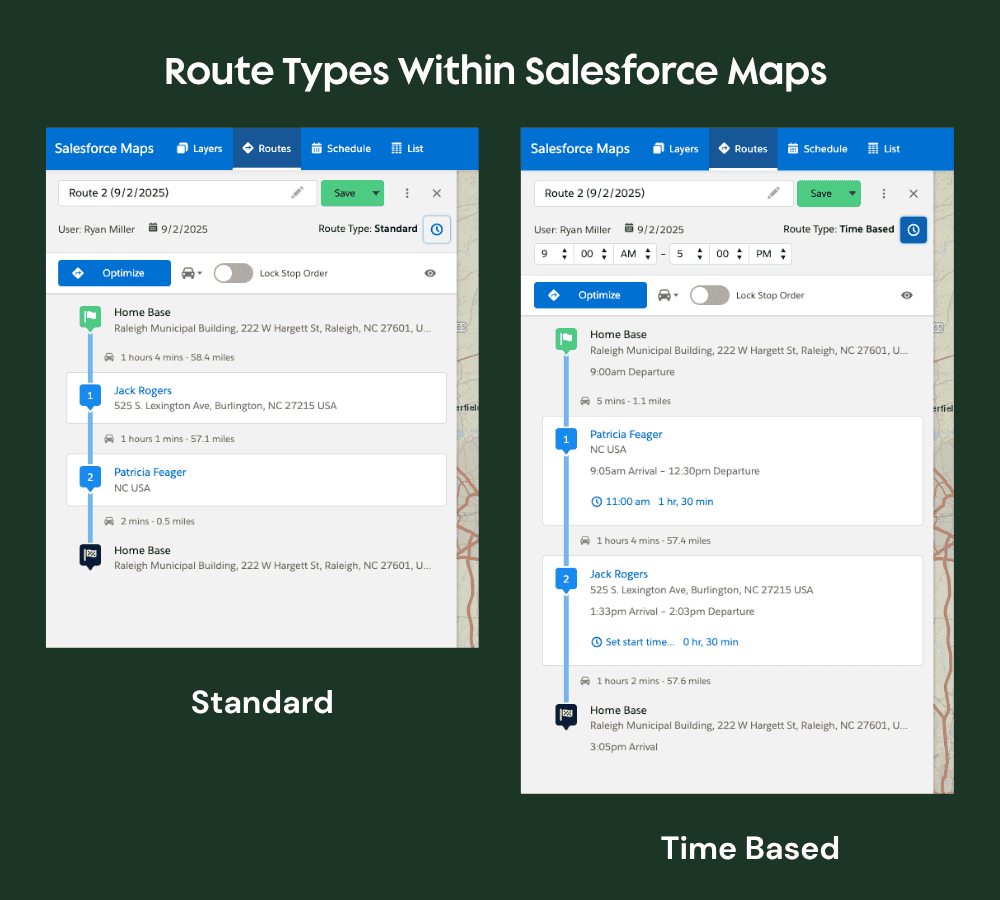
Salesforce Maps excels at route planning. You can set default start and end locations, save favorite spots (like a regional office), and use drawing tools—polygons, rectangles, circles—to select multiple locations for a route. The platform supports time-based scheduling, so you can optimize your route to arrive at meetings on time.
- Routes can be planned directly in the Maps interface
- Order can be decided, or optimized based on location and time needed.
- Map markers can be selected and added to schedule
- Meetings can be manually created
Territory Management
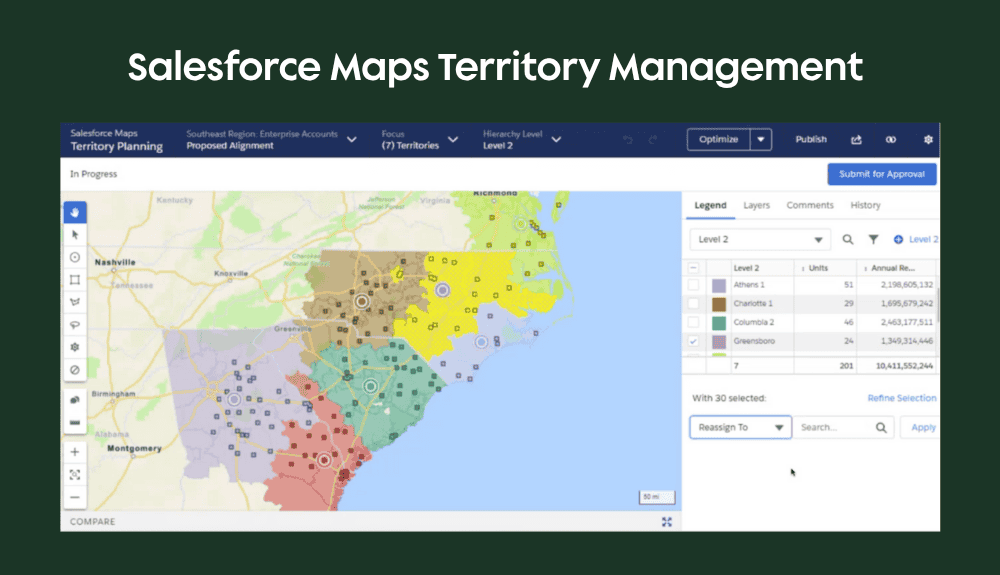
Territory planning is another standout feature. You can zoom into specific regions, set default map views, and use data sets from Salesforce reports to define territories. The alignment tool lets you visually reassign regions and records, supporting collaborative territory management and approval workflows.
Advanced Visualization Capabilities
Beyond simple location mapping, Salesforce Maps empowers teams with dynamic visual insights that drive smarter decisions. From identifying high-value regions with heat maps to planning around real-world conditions using real-time overlays, these tools bring critical context to your business data—right on the map
Heat Maps
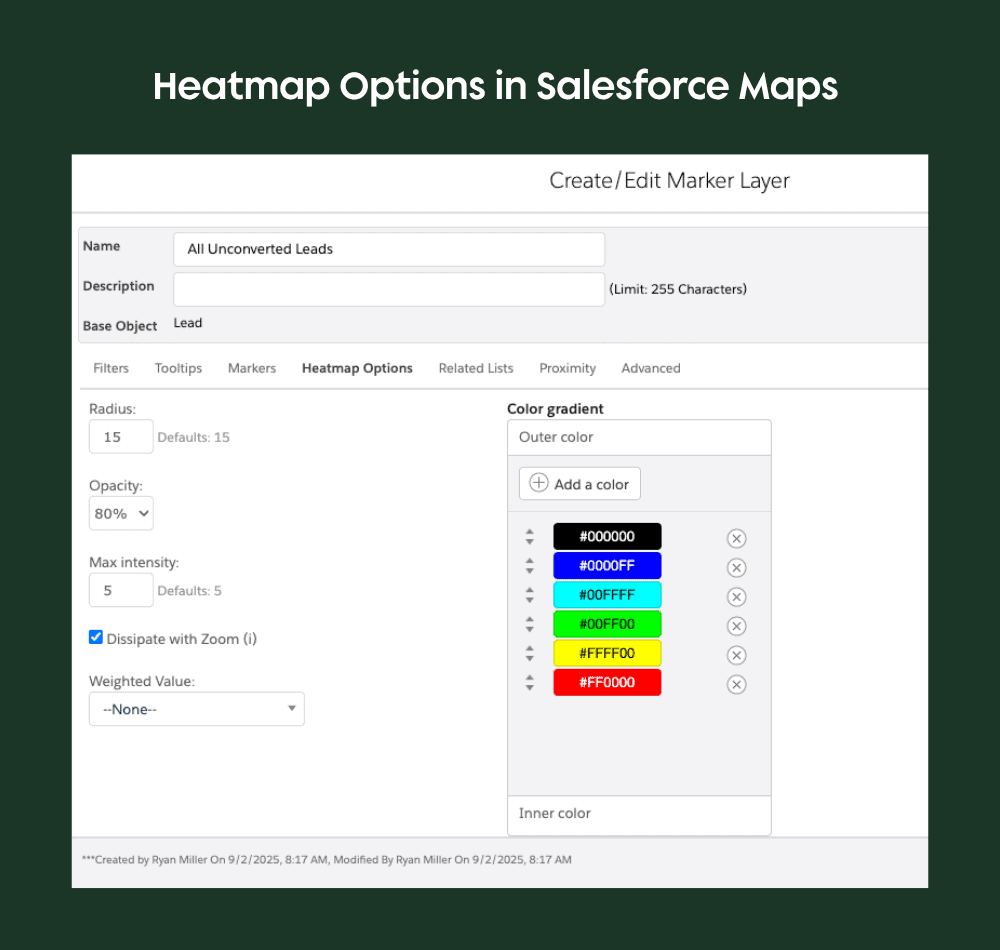
Heat maps provide powerful insights into your business. Instead of just seeing where your clients are, you can visualize revenue concentration, growth trends, or other metrics by area. This helps identify where to allocate resources, add sales reps, or focus marketing efforts.
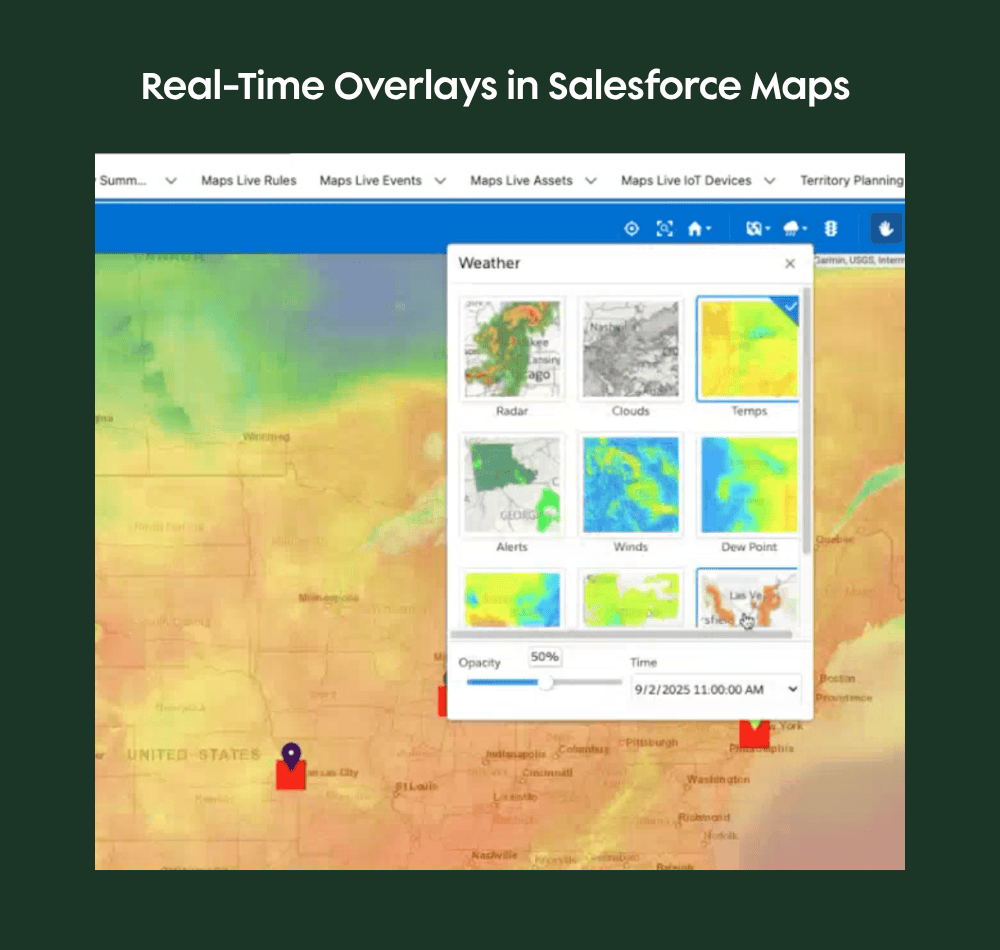
Real-Time Overlays
Salesforce Maps includes real-time weather and traffic overlays, which are especially useful for sales reps and planners on the move. You can view temperature, radar, and traffic conditions along your route, helping you avoid delays and plan more efficiently.
Use Cases for Salesforce Maps
Whether you’re managing field technicians, sales reps, or nonprofit outreach teams, Salesforce Maps helps you visualize, prioritize, and optimize your in-person efforts.
Who Uses Salesforce Maps (and Why It Matters)
Salesforce Maps is more than a tool for plotting pins on a map. It’s a strategic advantage for teams that need to connect physical locations to business results.
- Traveling sales reps use it to plan efficient routes and maximize customer face time.
- Operations leaders rely on it to align field activity with regional strategy.
- And, industries like agriculture, logistics, commercial real estate, and multi-location B2B sales depend on it to manage territories, reduce travel costs, and drive revenue from the ground up.
When used well, Salesforce Maps becomes a driver of smarter territory design, faster deal cycles, and better customer experiences—turning location data into meaningful action.
Ideal Scenarios for Using Maps
The platform’s self-serve planning tools empower users to create custom routes, visualize market trends, and manage territories without relying on centralized dispatch. If you are looking for more of a dispatching and automated scheduling solution, Salesforce Field Service is geared towards that but does not include this kind of visual mapping.
Here are some common scenarios that are well-suited to using Salesforce Maps:
- Field service appointments
- Sales territory planning
- Nonprofit outreach
- Coverage planning
- Proximity-based alerts
What Ops Leaders Wish They Knew About Salesforce Maps
- It’s similar but different from Field Service. Sales teams, nonprofits, and even marketing teams benefit from geographic insights. Field Service provides the ability to dispatch service workers across a map, but Salesforce Maps extends that capability for users to leverage self-serve geographic visualizations, territory planning and routing.
- Setup doesn’t have to be complex. With the right partner, it’s only a couple of weeks to start getting value.
- It unlocks smarter prioritization. Overlaying KPIs and location data helps you focus on high-impact visits.
- It surfaces gaps in coverage. Easily visualize team workloads, regional gaps, or scheduling inefficiencies.
- It helps close the loop. Combining Maps with Dashboards helps execs track field performance in context.
Requirements, Pricing, and Support
To make the most of Salesforce Maps, it’s essential to plan for key technical and operational requirements. This section briefly walks through what you need to know about data setup, pricing considerations, and available training resources so your team can confidently adopt and scale this powerful tool.
Geocoding and Data Considerations
To plot records accurately, Salesforce Maps relies on geocoded data (e.g., latitude and longitude values tied to each address). While Salesforce may offer automatic geocoding, some organizations use external tools or custom flows to populate these fields. Ensuring your data is properly geocoded is essential for reliable mapping and routing.
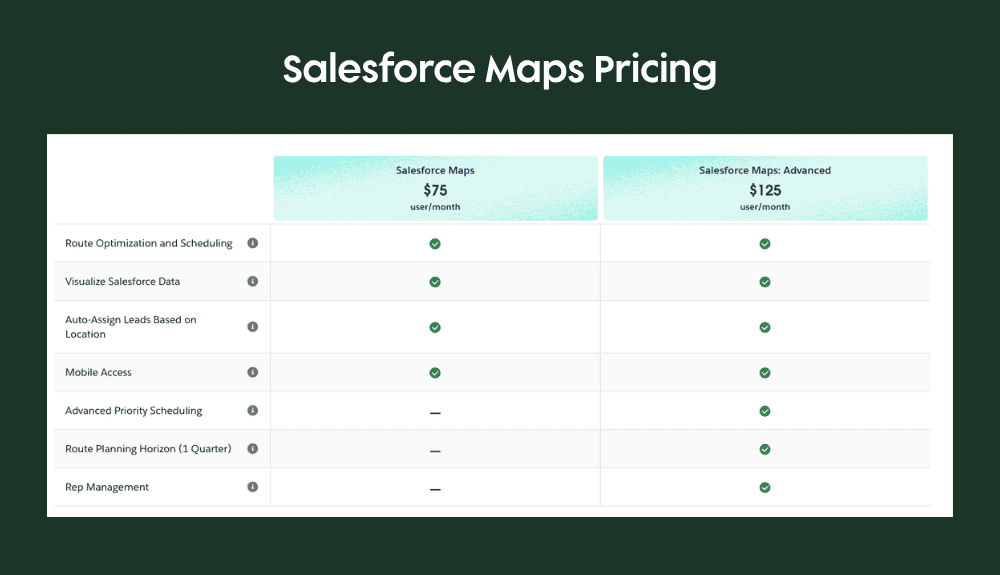
Pricing and Licensing
Salesforce Maps is available as a paid add-on, typically licensed per user. Transparent pricing can be found on Salesforce’s website, making it easy to budget for your team’s needs. The below screenshot illustrates pricing available at the time of this blog’s publication date
Training and Support
Salesforce offers interactive training modules and simulators to help users master Maps features, ensuring a smooth onboarding experience and ongoing support. Additionally, the Growth Heroes team is available to work with your organization to plan and implement Salesforce Maps on behalf of your business.
Mapping Your Plan of Action
If your team spends time on the road or makes decisions based on location, Salesforce Maps could be the most underutilized feature in your CRM stack.
It brings together powerful visualization, flexible routing, and territory management in a single platform. Whether you’re a sales rep planning your daily visits or an executive strategizing for growth, Maps provides the tools to make data-driven decisions and optimize your operations.
If you’re ready to map a smarter path forward, we’d love to help.