

What Is Salesforce Experience Cloud?
Salesforce Experience Cloud is a versatile platform that enables organizations to build portals for seamless communication with internal teams, stakeholders, and customers. These portals can take the form of partner portals, customer support hubs, or public-facing websites, all tailored to specific business needs.
Our team at Growth Heroes has worked with organizations across industries to tailor these portals in ways that improve collaboration, streamline data access, and create more intuitive digital experiences. Experience Cloud can
- enable connectivity between various audiences (internal, partners, customers),
- support multiple portal types (partner, customer, public), and
- be customizable to fit unique organizational requirements.
Who Are Guest Users?
Guest users are visitors who access Experience Cloud sites without logging in. They represent the public audience and have a distinct experience compared to authenticated users, with limited access and no ownership of records unless specifically enabled.
Guest users
- do not require authentication to view publicly available pages,
- have limited permissions compared to standard, logged-in users, and
- cannot own records unless this is explicitly enabled in the site’s configuration.
How Does Salesforce Represent Guest Users?
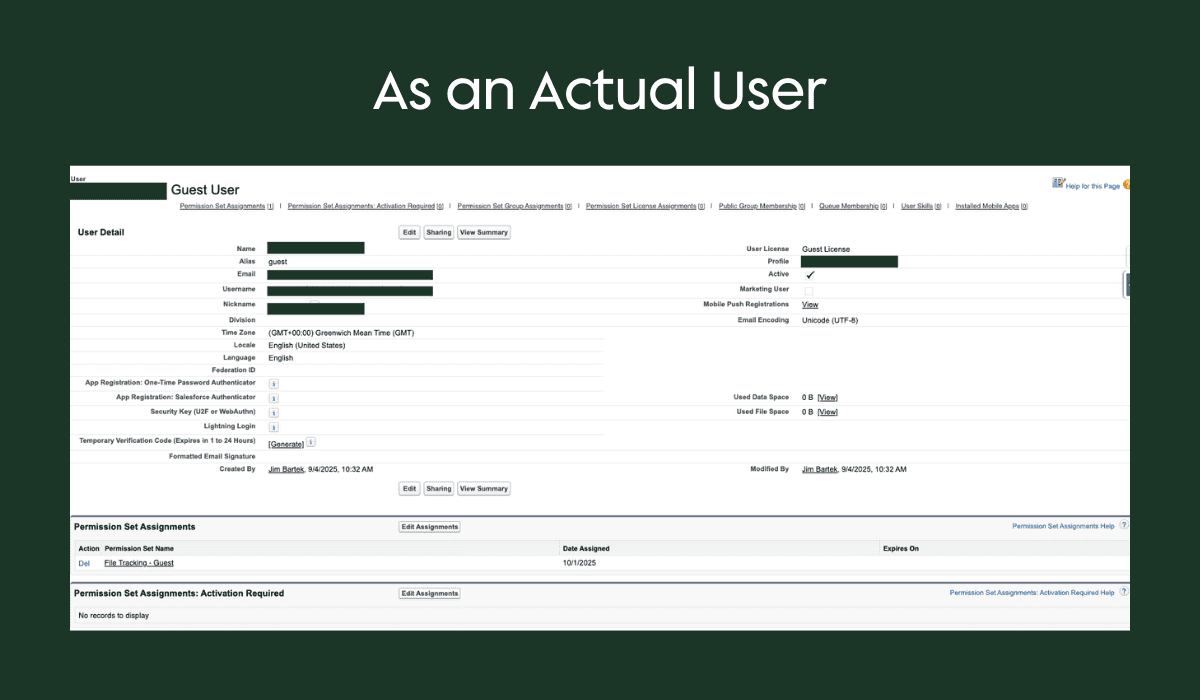
Salesforce simplifies guest user management by creating a single generic guest user per site. This user acts as the public-facing identity for anyone browsing without logging in. Administrators control this user’s access through this profile — adjusting permissions, sharing rules, and page layouts to ensure security and appropriate data visibility.
A Salesforce guest user
- is created uniquely for each individual site,
- relies on a single guest profile to define baseline access,
- receives additional permissions through permission sets and sharing rules, and
- is further restricted by page layouts that limit visible fields and record
How Can Admins Manage Guest User Access?
Admins can fine-tune guest user access using sharing settings, custom sharing rules, and page-level controls. It’s important to strike the right balance between public usability and data security, especially when multiple Experience Cloud sites are involved. This is a good example of where the Growth Heroes team helps clients tighten access without breaking functionality.
Ways admins can manage guest access include
- setting default access levels through sharing settings (private, public, or controlled by parent),
- applying custom guest-user sharing rules for more granular control,
- using page layouts to restrict what fields and data appear, and
- regularly auditing guest user permissions to ensure changes in the org haven’t opened unintended access.
Guest User Sharing Settings
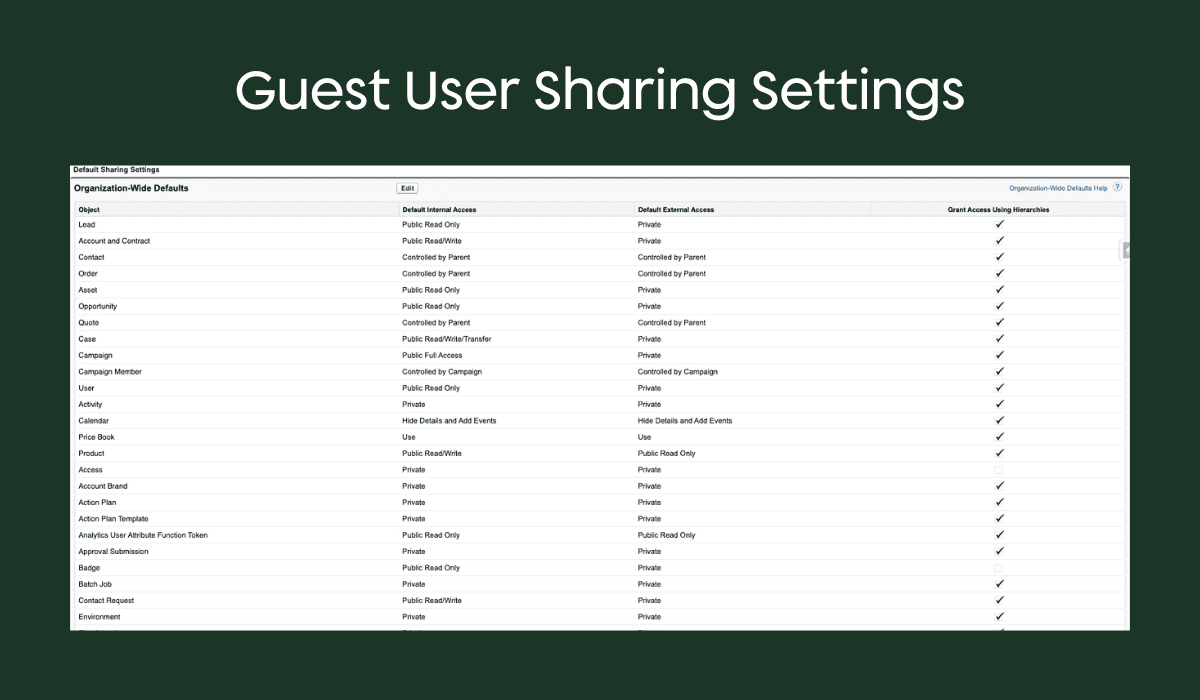
Just like Salesforce provides Default Internal Access in organization-wide defaults, there is Default External Access for external audiences – including guests. All guest users across all sites use the same sharing settings.
If an object’s Default External Access is Public, then all Guest Users across all sites will have access to it.
Guest User Sharing Rules
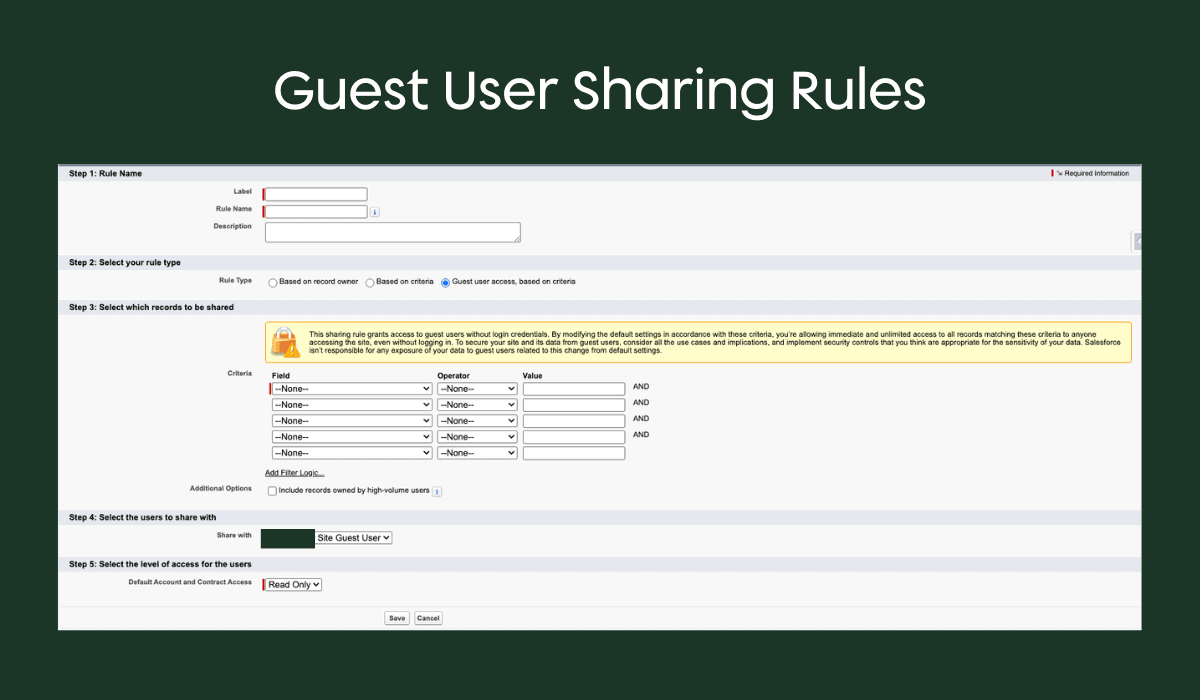
In order to manage guest user record access more intentionally, Guest User Access sharing rules are vital. These rules are based on criteria. These rules are criteria-based and can grant access to specific records, but only to one guest user at a time, since each site has its own unique guest user.
Guest User Profile
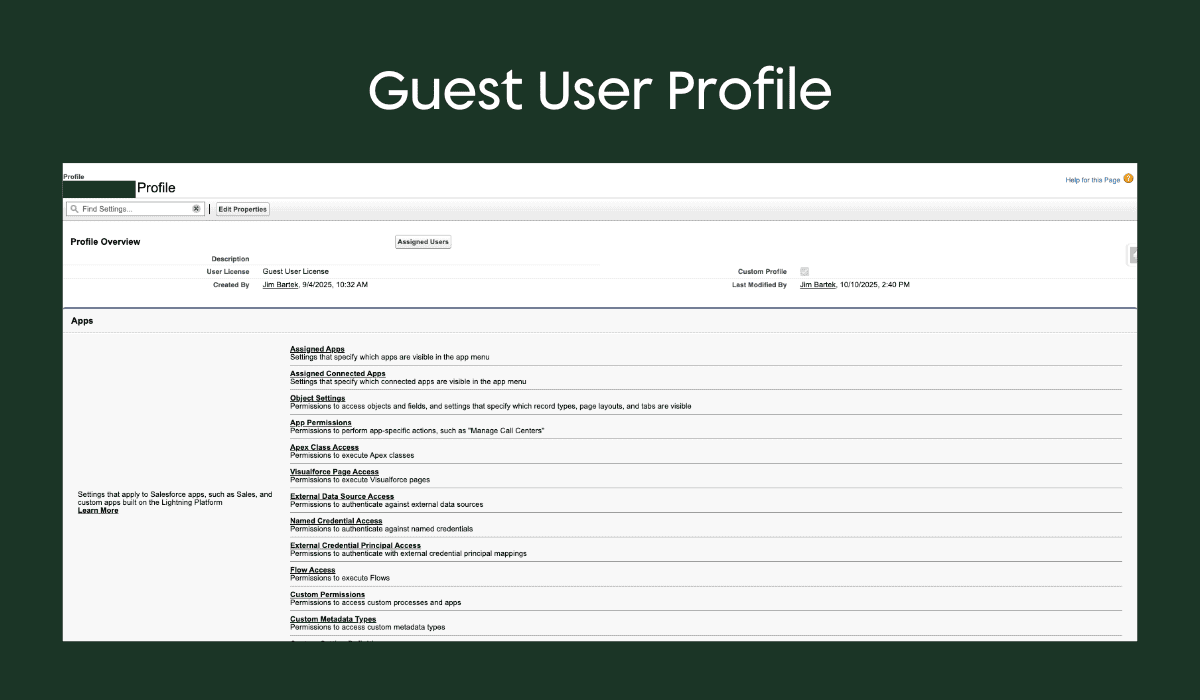
In addition to a user, Salesforce creates a unique guest user profile. This profile gives admins the ability to assign permissions directly to the guest users. Beyond having record access, a guest user needs object and field level access in order to view Salesforce Data.
Guest User Page Layout
Using a custom page layout for guest users is optional, but recommended. Creating a guest-specific layout allows admins to limit the fields and related lists displayed, reducing risk and ensuring public visitors only see exactly what they’re intended to see.
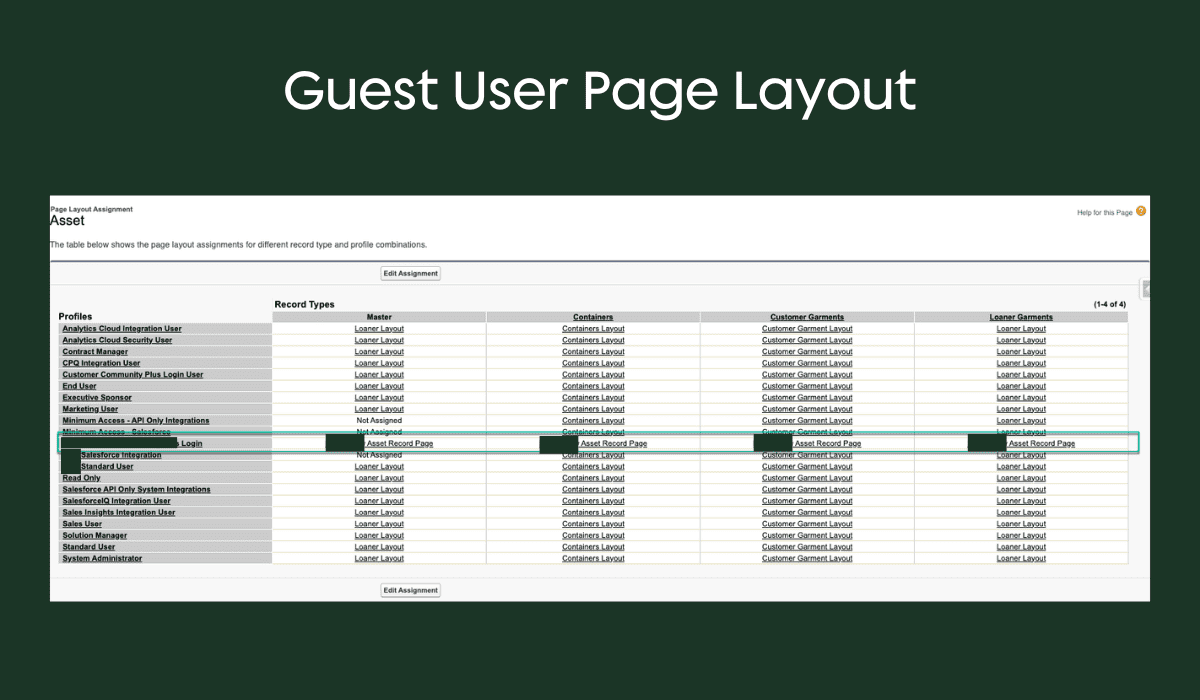
Before you can confidently decide what guests should or shouldn’t see, it’s also important to understand where that access actually applies. Experience Cloud includes different page types, each with its own rules for public visibility. That structure plays a big role in how secure (or exposed) your site really is.
Types of Pages and Public Access Considerations
Experience Cloud supports various page types—standard, object, and content pages. Some pages (like login or account) have fixed access levels, while others can be customized for public or private access. Understanding these distinctions is key to secure site design.
- Standard pages: Flexible access, can override site defaults
- Object pages: Inherit site-level access settings
- Login and error pages: Always public, cannot be changed
- Content (CMS) pages: Specialized, require additional configuration
Standard Pages
Standard pages are default pages that come with the Experience Builder template or that you create. Standard pages provide more flexibility. Some default standard pages access settings can be edited. All standard pages created by users can have their access set on the page level.
Object Pages
Object pages display object properties, such as the object’s record detail, list, and related list pages. Generic object pages display record information for a Salesforce object when custom object pages don’t exist. These pages inherit the access setting from the experience site and can not be set individually.
Login Pages
Login pages are default pages that come with the Experience Builder template. These pages are public by default and can not be edited regardless of site wide access settings.
Tools for Auditing and Testing Guest User Access
Salesforce provides tools to help admins verify guest user permissions and access. Reviewing the guest user profile and using the Guest User Sharing Rule Access Report ensures that only intended data is exposed.
- Guest user profile access summary for reviewing object, field, and system permissions
- Guest User Sharing Rule Access Report to understand which records and objects are being shared
- Preview as Guest User to test the real visitor experience and verify what data appears on each page
Practical Example: Sharing a Single Object Page Publicly
When a use case requires making only one object page public (e.g., for QR code scanning), admins must set the site to public, then lock down all other pages and objects. This layered approach ensures only the intended data is accessible.
- Set the site to public so the specific object page can be accessed.
- Restrict all other objects and pages through sharing rules and profile permissions.
- Assign a custom guest-user page layout to limit which fields appear.
- Test the experience as a guest user to confirm security.
Common Guest User Access Questions
Q: Can I make only one page public without exposing the entire site?
A: For object pages, the site must be set to public, but you can restrict all other pages and objects using sharing settings and profiles. Standard pages allow more granular control at the page level.
Q: How do I check what guest users can see?
A: Use the guest user profile access summary and the Guest User Sharing Rule Access Report. You can also preview the site as a guest user to see exactly what is visible.
Q: Are there risks in making a site public?
A: Yes, new object pages default to public if the site is public. Always review and restrict access to sensitive data using sharing rules, profiles, and page layouts.
Q: What happens to pages like login or account?
A: These pages have fixed access levels set by Salesforce and cannot be made private or public beyond their defaults.
Q: Can guest users own records?
A: By default, guest users cannot own records unless this is specifically enabled in the configuration.
Recapping Experience Cloud Guest User Access
Managing guest user access in Salesforce Experience Cloud can feel simple on the surface, but as you’ve seen…the details matter. Small configuration choices can open (or close) big doors in terms of security, usability, and the overall experience your public audiences have with your site.
Growth Heroes has helped organizations of all sizes navigate these nuances, from designing secure public pages to tightening permissions across multiple sites. Whether you’re troubleshooting an existing portal or planning a new one, thoughtful configuration goes a long way in keeping data safe and experiences smooth.
If you’d like help reviewing your current setup or designing a more scalable approach, we’re always here to talk.