

Salesforce Experience Cloud, formerly known as Community Cloud, empowers organizations to build secure, branded portals for external users. Whether you’re supporting customers, partners, or employees, Experience Cloud provides a flexible platform to share select Salesforce data and foster engagement.
Key Use Cases:
Here are some of the most common ways organizations are using Experience Cloud today:
- Customer Support & Help Centers
- Customer Account Portals
- Partner/Contractor Portals
- Employee Portals
Experience Cloud stands out for its intuitive click-and-drag builder, mobile responsiveness, and robust integration with Salesforce data. Users can connect through discussion forums, leverage gamification features, and access dashboards and reports (depending on license type).
Notable Features:
In addition to its diverse use cases, Experience Cloud is packed with features that help you build highly functional and engaging sites:
- Drag-and-drop site builder
- Mobile-friendly design
- Secure Salesforce data access
- Knowledgebases / Support articles
- Case creation
- Discussion forums
- Integrated content management (Salesforce CMS or external)
- Reporting and dashboards (with select licenses)
Extending Experience Cloud
Beyond the core functionality, we often see organizations extend Experience Cloud with custom solutions and integrations. Here are just a few ideas to spark inspiration:
- Agentforce Chat Bots for self-service
- Invoice payments
- Service Reports and Work Order Summaries
- PDF Document Generation on demand
- Asset Management
- Applications and Forms
Templates: Building Your Portal
Choosing the right template is foundational to your Experience Cloud site. Salesforce offers a variety of pre-built and customizable templates, each tailored to specific business needs.
Pre-Built Templates:
- Customer Service: Enable users to post questions, create cases, and collaborate with support.
- Customer Account Portal: Allow users to view and update account information.
- Partner Central: Give partners access to sales data.
- Aloha: App launcher layout with Single Sign-On (SSO) capabilities.
- Microsite: Ideal for content presentation and simple lead capture.
- Salesforce Tabs + Visualforce: Extendable with Visualforce for advanced customization.
Custom Templates:
- LWR (Lightning Web Components): Fully customizable sites.
- Aura: Customizable, but with fewer options than LWR.
Tip: Templates cannot be changed after selection, so review features and limitations carefully.
Additional Resource:
With your template in place, the next step is aligning the look and feel of your site to your brand identity and audience needs.
Themes, Branding, and Personalization
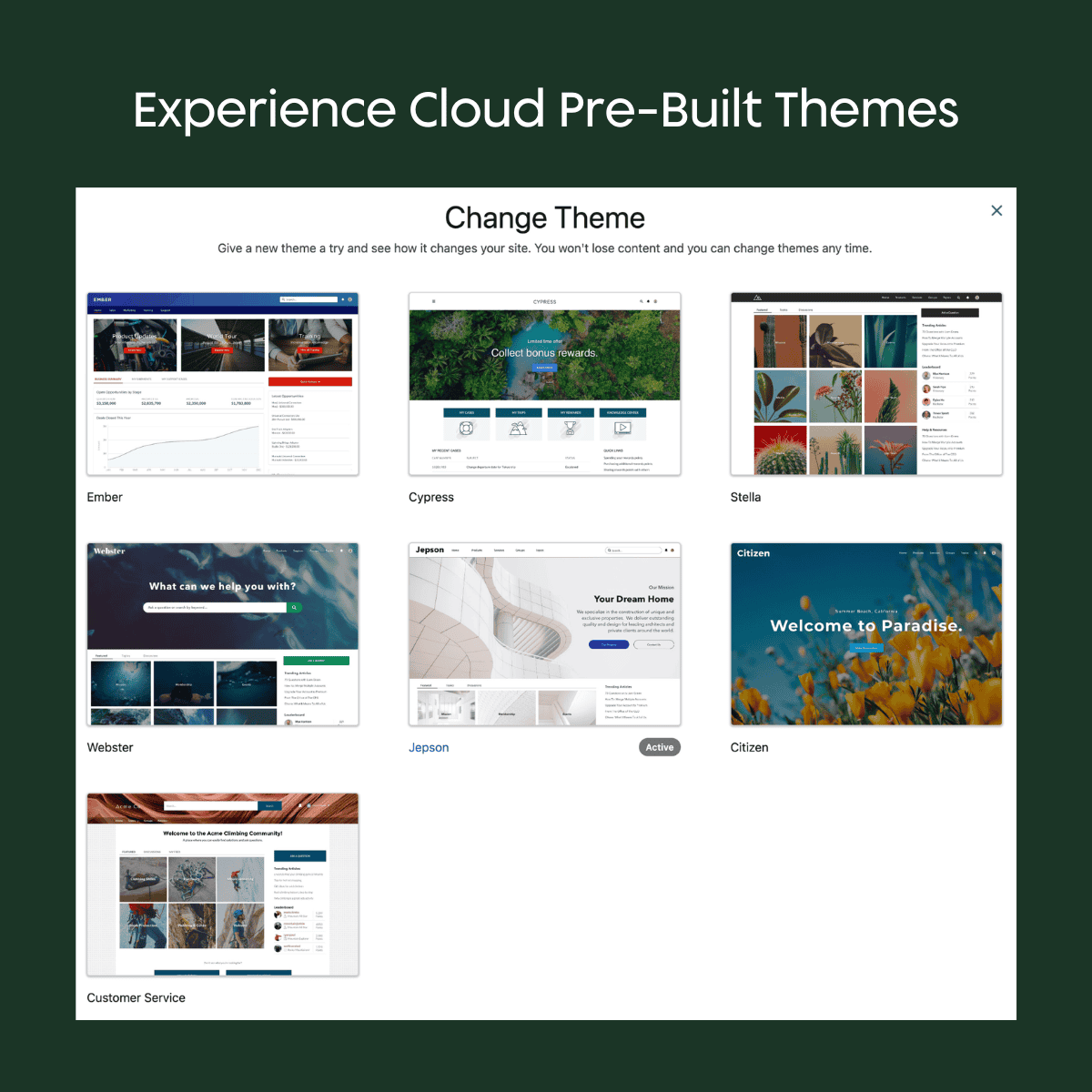
Experience Cloud offers seven pre-built themes, allowing you to tailor the look and feel of your portal. Themes can be changed without losing content, though formatting issues may arise.
Branding Options:
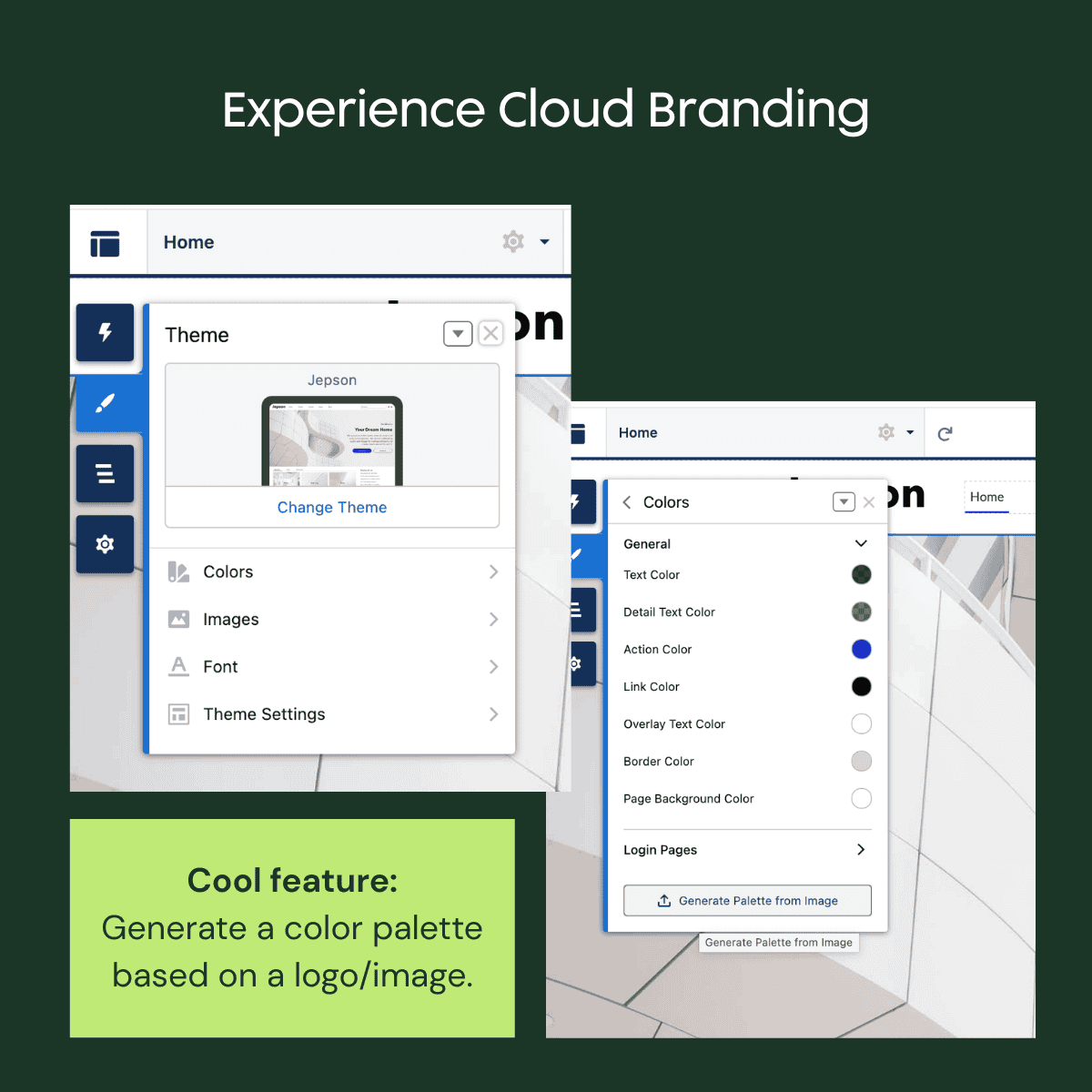
- Custom color palettes, fonts, logos, and images
- Advanced styling via CSS
- Generate color palettes from your logo or images for seamless branding
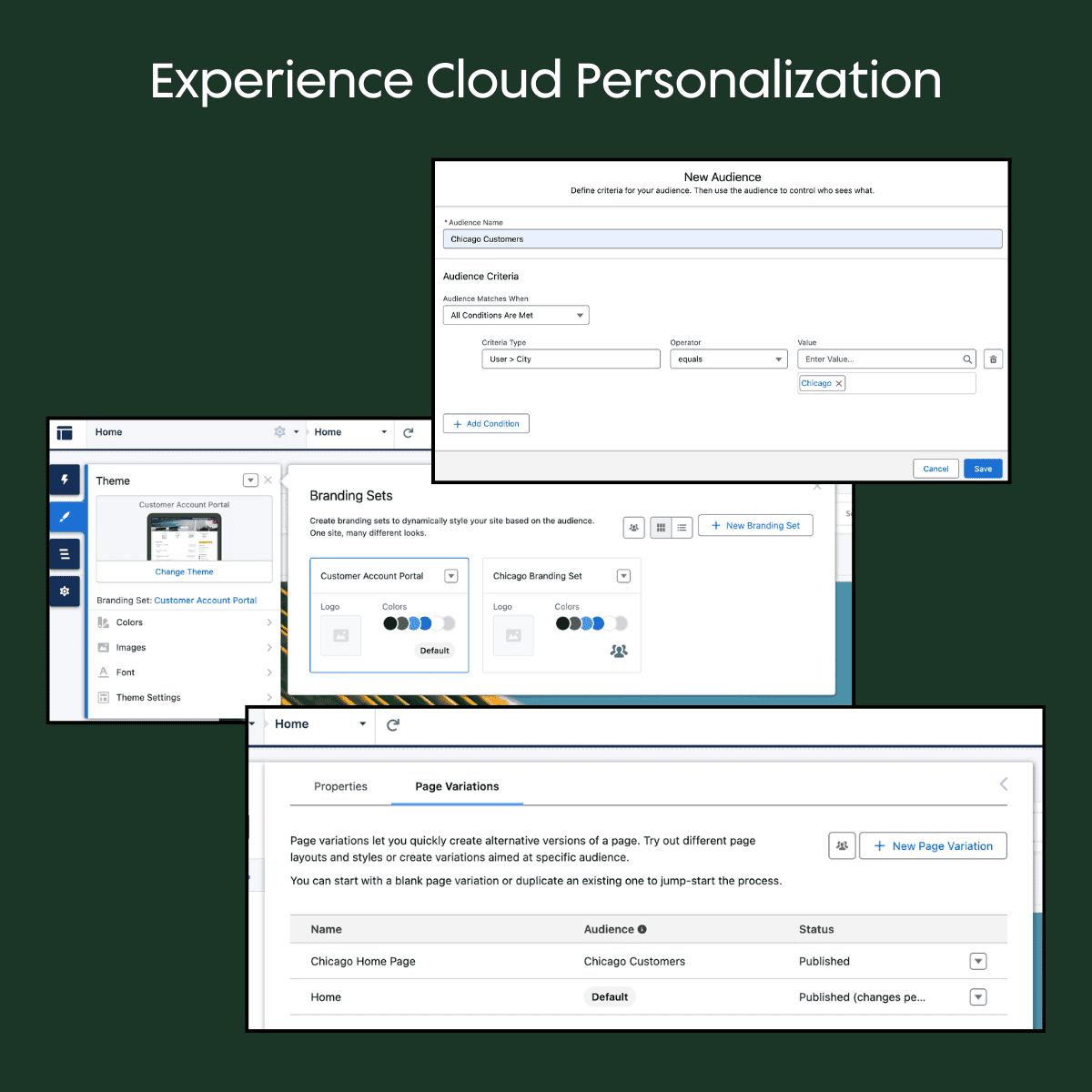
- Personalization is a powerful feature. Pages and components can display dynamically based on user attributes, ensuring a tailored experience for each audience.
Personalization Tools:
- Audiences: Define user groups by attributes
- Branding Sets: Dynamically change colors and logos per audience
- Page Variations: Serve different versions of a page to different audiences
With branding and personalization established, let’s explore the building blocks of your portal: pages and components.
Page Types & Components
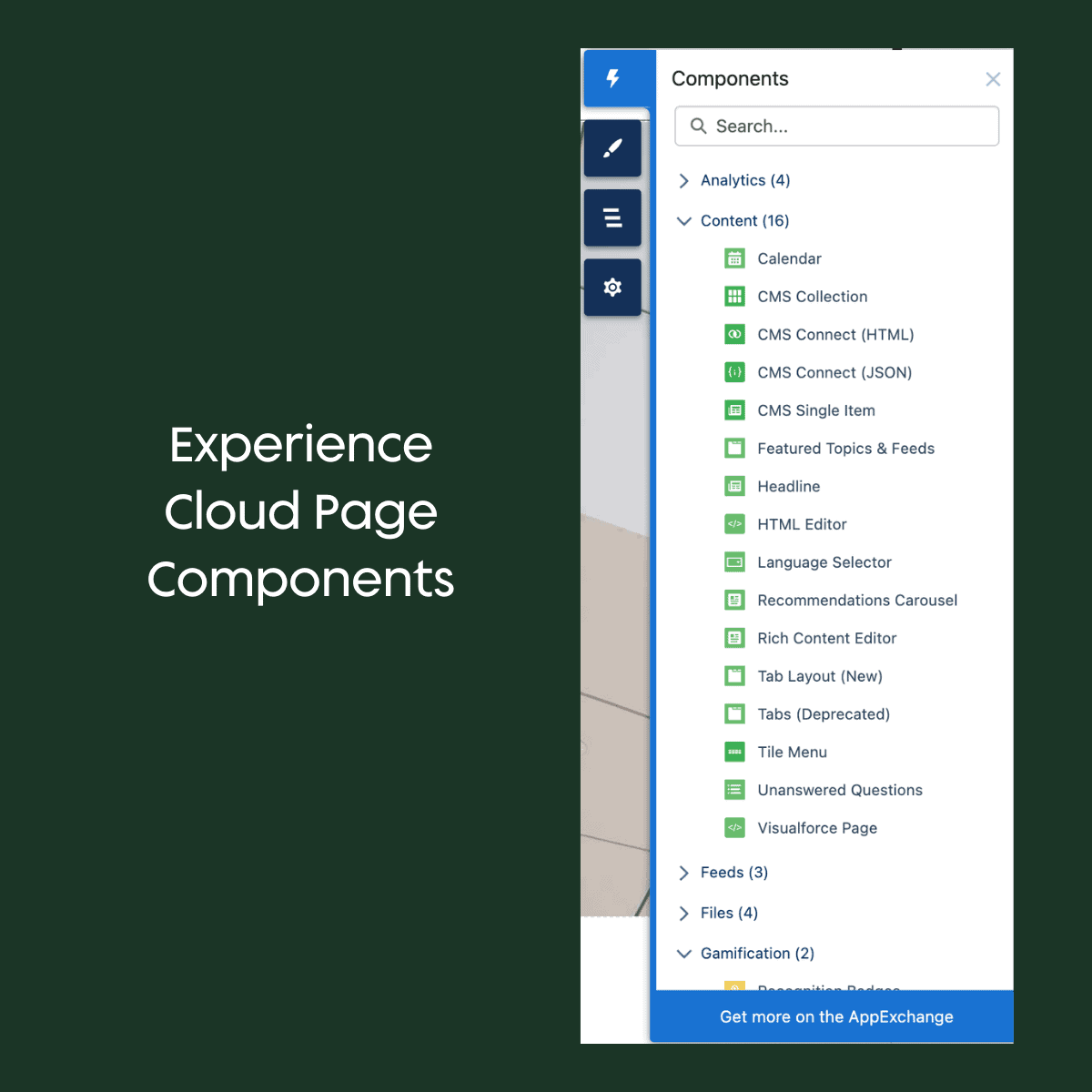
Experience Cloud supports a variety of page types, from login and registration to home and record detail pages. The platform’s modular components make it easy to add analytics, content, feeds, files, gamification, and process automation.
Page Types:
- Login Pages
- Login
- Register
- Forgot Password
- Home
- Any page components in a drag and drop layout
- Record Detail Pages
- Based on standard Salesforce page layouts and record data
- List Pages
- Based on standard Salesforce List Views
- Content-Only
- Just like the home page
Common Page Components:
- Analytics (e.g., dashboards, reports)
- Content (CMS, rich text, recommendations)
- Feeds (discussion forums, Q&A)
- Files (document sharing)
- Gamification (reputation levels, badges)
- Process Automation (flows, support tools)
Licensing: Understanding Your Options
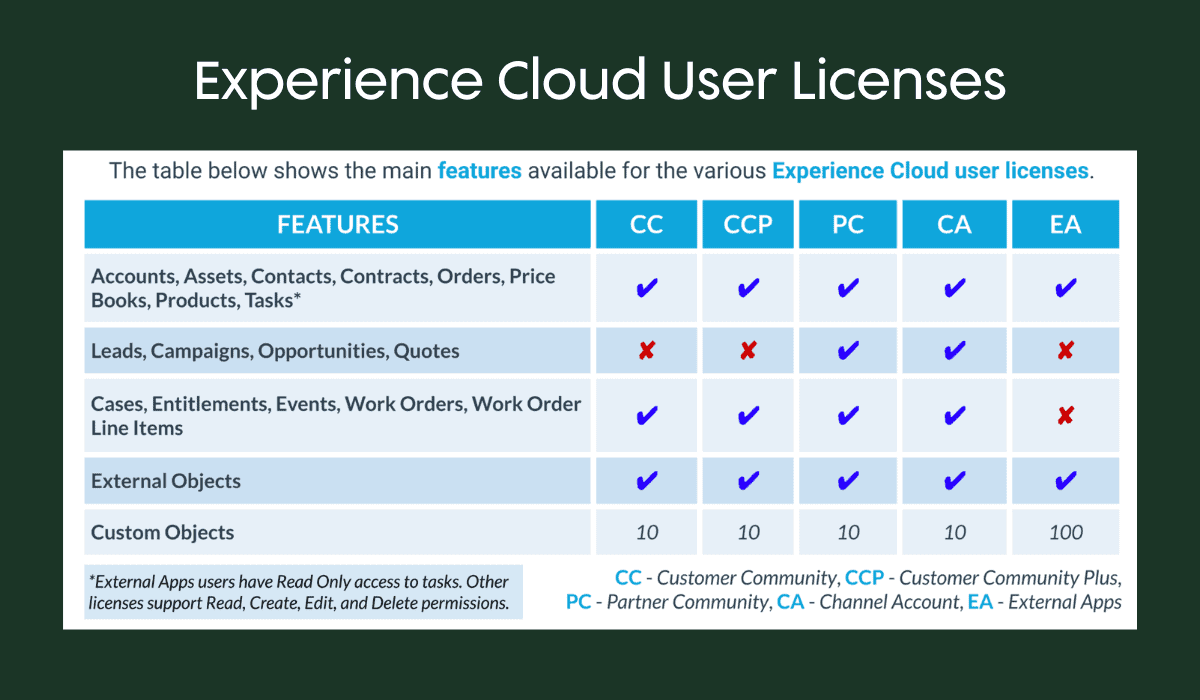
Experience Cloud offers several license types, each with distinct features and access levels. To unlock the right features for your users, it’s essential to choose the appropriate license type. Here’s a breakdown of the options.
License Types:
- Customer Community (CC)
- Customer Community Plus (CCP)
- Includes Reporting
- Partner Community (PC)
- Include Reporting and access to Sales data like Opportunities
- Channel Account (CA)
- External Apps (EA)
Licenses can be member-based (for frequent users), login-based (for occasional users), or a mix of both. Choose the model that best fits your user engagement patterns.
License Models:
- Member-Based:
- License per user accessing the community
- Pay $x per user per month that has an active license
- Great for a focused group of heavy users like Partners and Clients
- Login-Based:
- License per login per month
- Pay $x per every time someone logs in in a unique 24 hour period
- 2 logins in 1 day is not counted twice
- Great for many users that may login only a few times a year like Customers
- Mixed:
- Combine member and login-based for flexibility
User Considerations
Before launching your site, consider how users will interact with content and each other.
Questions to Ask:
- Do users need to log in for all content, or should some be public?
- Are access levels uniform, or do they vary by user?
- Do some users need to manage others’ access?
- Example: Allowing a customer admin to add team members
Setting Up Experience Cloud
Ready to get started? The setup process is straightforward when guided by a solid plan. The Growth Heroes team likes to use the following high-level checklist as a starting point to set your site up for success.
Setup Checklist:
- Determine license and template
- Define user and site structure
- Gather branding assets
- Enable Digital Experiences
- Configure core site and branding settings
- Set up moderation and reputation levels (if needed)
Note: Experience Cloud settings span Setup, Workspaces, and Builder, plus sharing and permissions configuration.
Maintaining a Live Site
Ongoing management is key to a thriving Experience Cloud site. Regular moderation, fresh content, and engagement monitoring keep your portal valuable and secure.
Maintenance Tasks:
- Moderate discussion forums
- Update content regularly
- Maintain external links
- Monitor user engagement
Salesforce’s Community Management Package offers dashboards and reports for tracking engagement and site health.

Client Use Cases
Experience Cloud is trusted by organizations across industries. Need real-world examples? Here’s how we some organizations using Experience Cloud to solve unique business challenges:
- Customer portal for high-volume review of medical equipment repairs including images to keep or replace items
- Several Field Service Portals where customers can pay Invoices, monitor Assets, and download PDF Service Reports
- Community portal for educators to sign up as members and access learning resources
- Employee portal to access critical business information and live dashboards and reports from Salesforce data
- Customer self-service portal with Case submission and Knowledge articles
- Investor site for seeing how a nonprofit venture capital group is deploying money, and the return on those investments
- Migration of support portal from ZenDesk to Experience Cloud
- Large-volume public search directory of service providers and skills
Start Creating Better User Experiences
Salesforce Experience Cloud delivers a robust, customizable platform for building engaging, secure portals. By selecting the right template, branding, and license model, and following best practices for setup and maintenance, organizations can create dynamic experiences for customers, partners, and employees.
You don’t have to navigate Experience Cloud alone. Growth Heroes brings hands-on expertise to help you build a portal that’s intuitive, scalable, and aligned with your strategy.