When you’re working in Salesforce at an office desk, you usually have a reliable internet connection, a full-size screen, a keyboard, and relatively easy access to the information you need.
However, if you’re a technician or field employee, your day can look very different.
When you work in the field, conditions can change quickly. We’ve worked with field teams operating in places like basement mechanical rooms with almost no reception, while still needing to scan equipment, check service history, take photos, and complete the job.
And the information they need rarely sits neatly in one Salesforce record. It may be spread across Salesforce, an ERP, the physical asset itself, and other connected systems.
Our team has seen those requirements take very different forms from one client project to the next.
For System Scale, that meant moving from a DOS-based environment into a broad Salesforce implementation spanning sales, service, Experience Cloud, analytics, collaboration, AI, and Field Service. See the case study.
For Halton, it meant bringing 12 subsidiaries across 35 countries into a more unified process. See the case study.
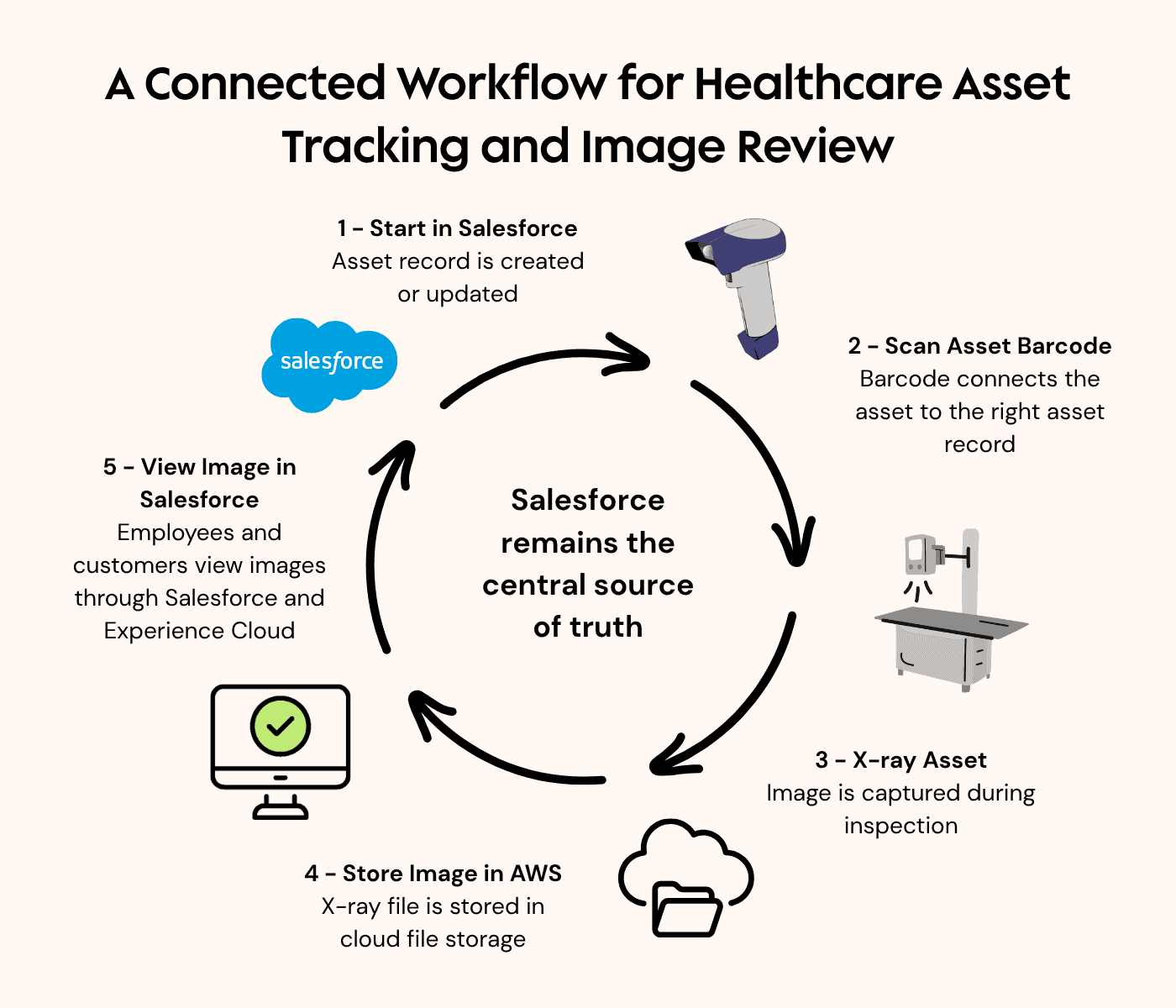
And on another project for a healthcare equipment company, the solution included barcode scanners, physical equipment, AWS-hosted images, Experience Cloud, and Salesforce working together.
Those client experiences shaped a presentation I gave at the 2026 Mile High Dreamin’ Conference about expanding Salesforce “beyond the desk.” My talk covered mobile, Maps, Field Service, barcodes, offline workflows, voice, AI, scheduling, and more.
This article builds on Jim Bartek’s 2026 Mile High Dreamin’ presentation, “Beyond the Desk,” which explored mobile, Maps, Agentforce Voice, scheduling, barcodes, and Field Service.
I could walk through a long list of features here, but the more useful lesson sits underneath all of them:
When Salesforce supports work happening in the physical world, you have to design around the way that work actually happens.
Start with the system around the field worker, not the app
When our team is helping a client think through a field experience, “Which mobile app should we use?” usually isn’t the best place to begin.
First, we want to understand what the person in the field is trying to accomplish, and we’ll probably ask questions like:
What information do technicians need before they arrive?
What do they need while they’re on site?
What needs to be captured before a technician leaves a job?
What physical equipment or inventory do they interact with?
Who schedules their work?
Which other systems are involved?
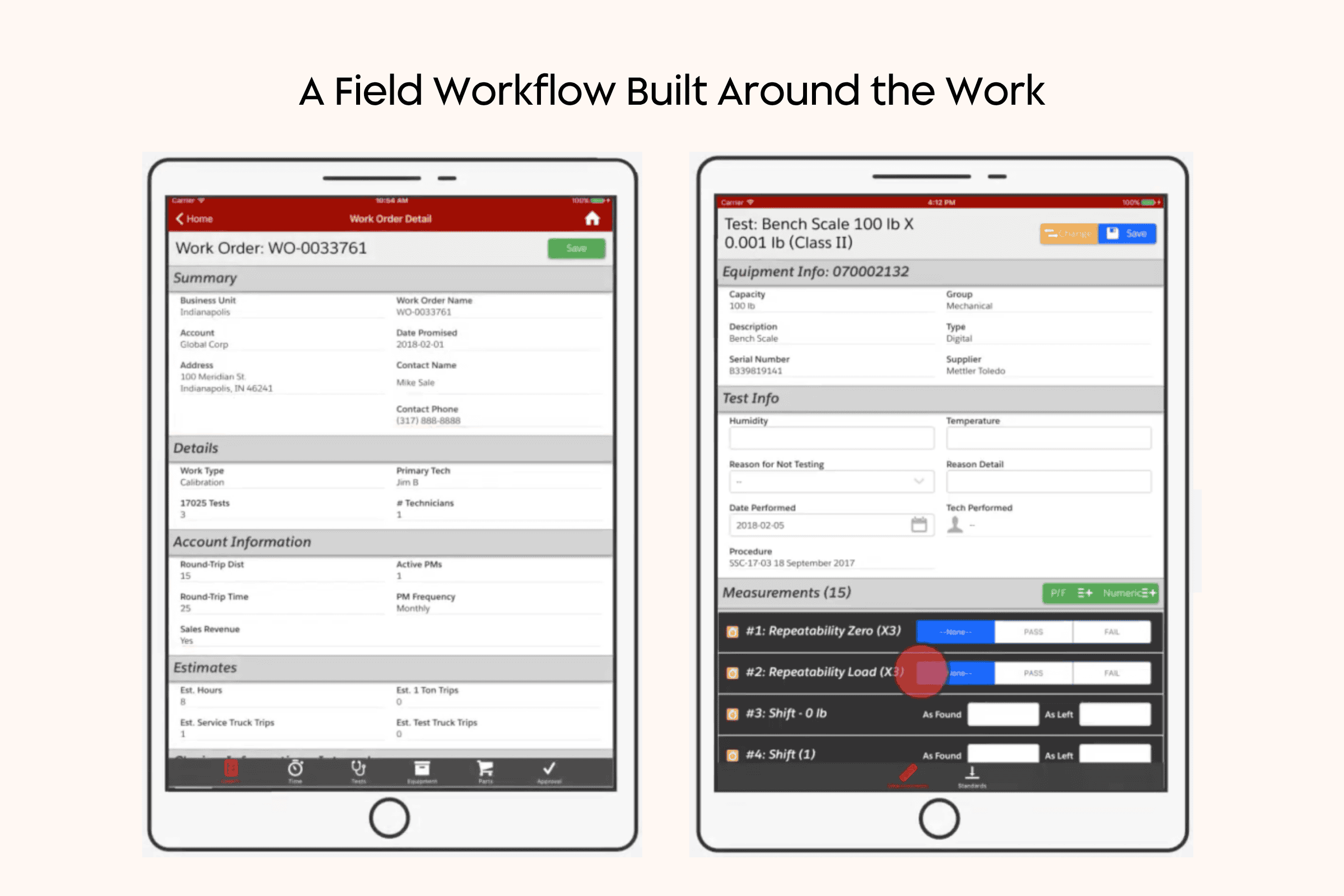
Field mobile experiences work best when they are designed around the technician’s actual tasks, from reviewing work order details to completing equipment-specific testing and data capture.
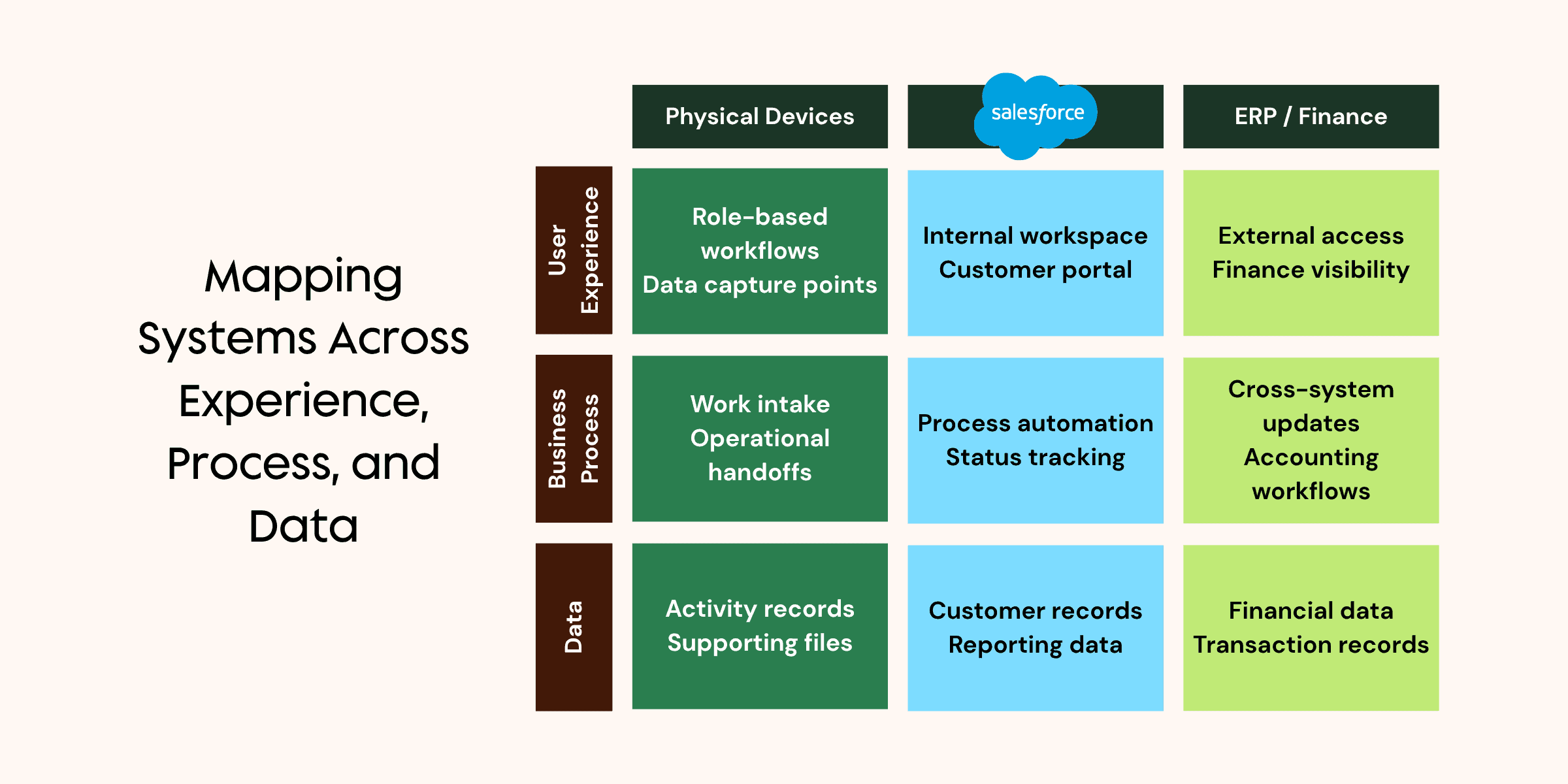
Then, we think about those questions across three connected layers:
User experience: What does the employee actually see and do?
Business process: What needs to happen before, during, and after the work?
Data: Where does the information come from, and where does it need to go?
That last layer often extends well beyond Salesforce.
We’ve found that the information a technician needs is often scattered across several systems. Salesforce may hold the customer and service history, an ERP may have parts or financial details, and the equipment itself may be sending back telemetry. Then you have to think about who else needs that same context, whether that’s the customer in Experience Cloud or internal teams working in analytics, collaboration tools, or AI.
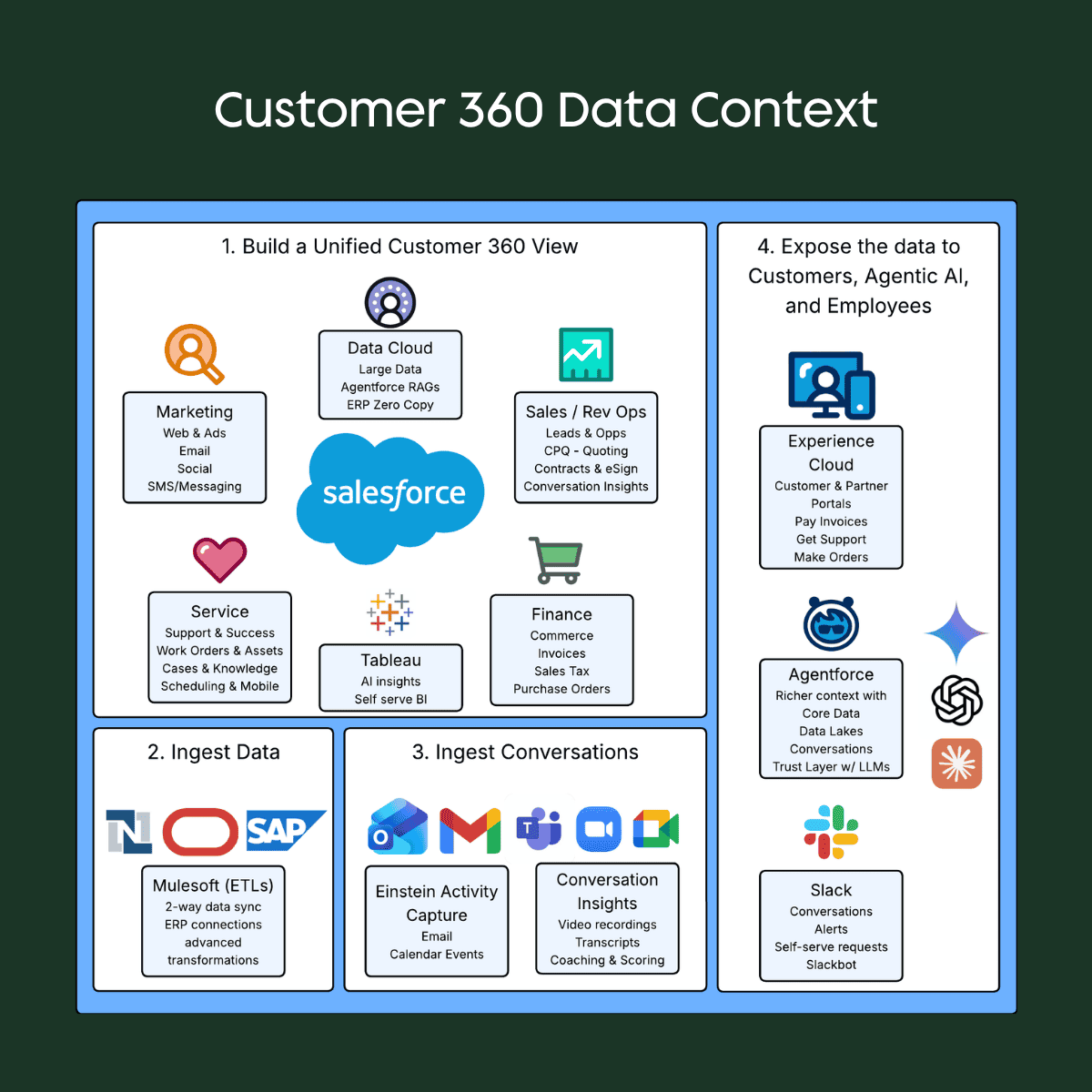
Bringing those pieces together is where the idea of Customer 360 becomes especially useful in the field. The goal is to give each person the right context at the right moment without forcing them to hunt across systems or piece the story together themselves. We’ve written more about that broader Customer 360 and agentic AI strategy, but in a field service setting the impact is especially practical: better context can help a technician diagnose the issue faster, arrive with the right information, and avoid unnecessary follow-up work.
Growth Heroes helps clients map user experience, business processes, and data across Salesforce and connected systems before building the solution.
Once a connected foundation is in place, the next challenge is coordinating how people and work move through the field.
Mapping your own day is different from orchestrating a field workforce
Maps and Field Service can both involve routes, locations, and people in the field, but we use them for different kinds of operational problems.
Salesforce Maps helps an individual plan the day
Consider a sales representative who has several prospects to visit. They may want to see all of those prospects on a map, select the locations they want to visit, add them to a schedule, and optimize the route. They may also want to see territory boundaries or account for other location-based information.
That’s the kind of individual route planning Salesforce Maps handles well.
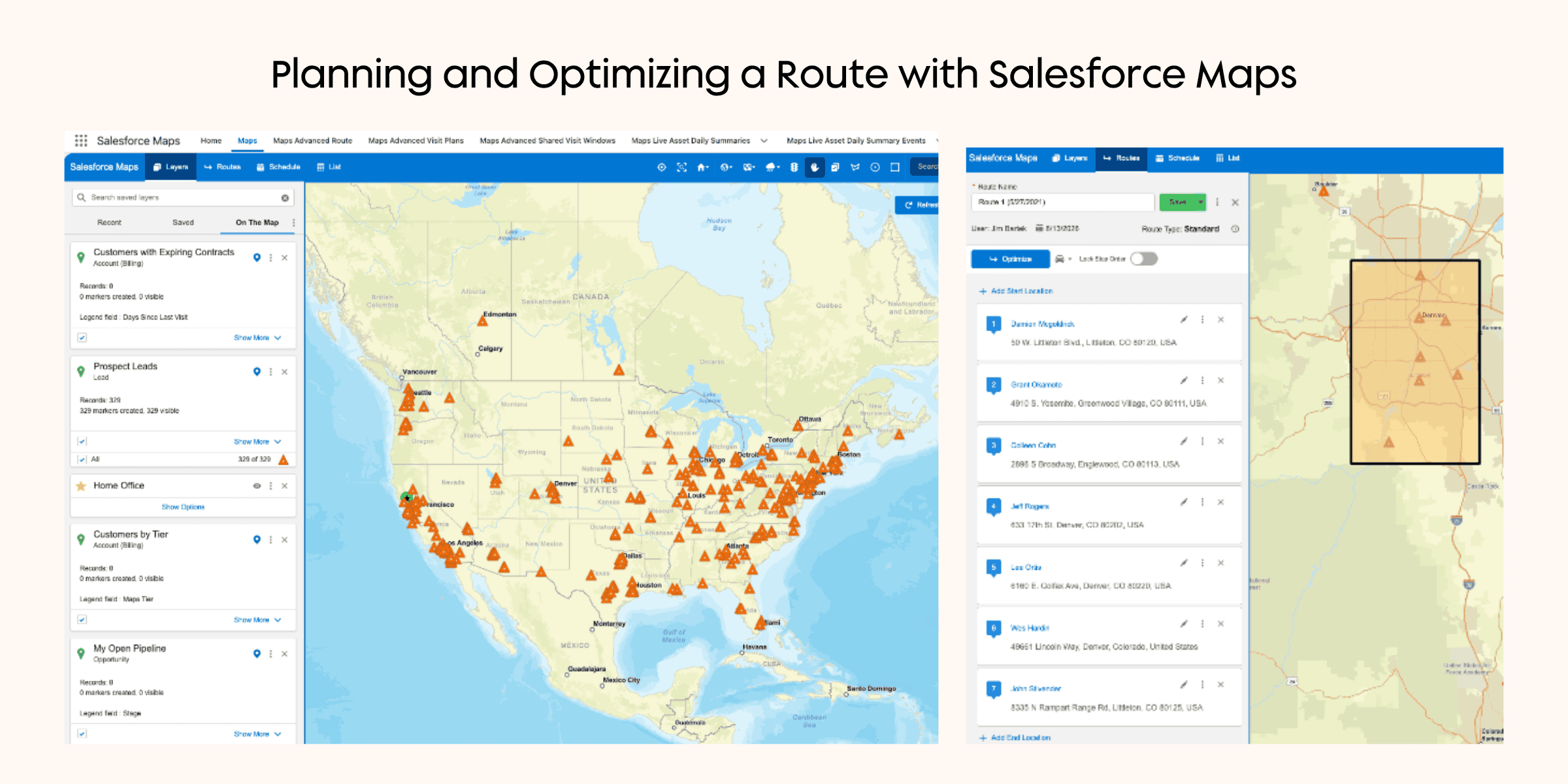
In my conference presentation, for example, I selected a group of prospect locations from a map, added them to the schedule, and let Salesforce optimize the route.
The emphasis is on helping one person answer a question like: Where should I go, and in what order?
Salesforce Maps helps individual field users visualize locations, plan visits, and optimize the order of stops for the day.
Field Service orchestrates work across many people
Once you’re coordinating work across dozens or hundreds of technicians, the questions change:
Who has the right skills for this appointment?
Who is available during the required window?
Which service territory applies?
How long should the job take?
Can the technician reach it without violating another scheduling constraint?
And what happens when something changes halfway through the day?
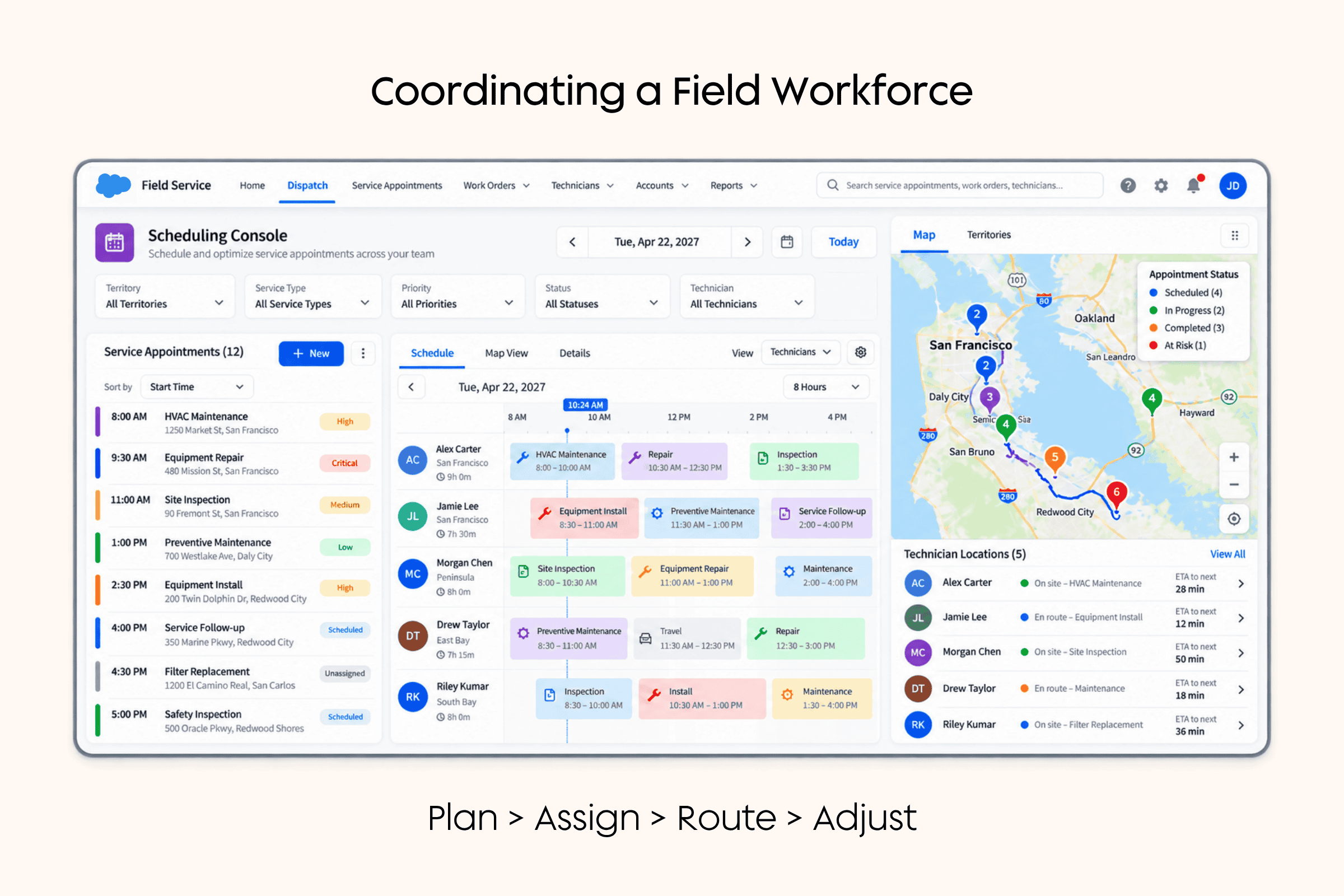
In Field Service, the scheduling and dispatch experience can bring together service appointments, resources, territories, skills, availability, and geographic context. Dispatchers can assign or move work, identify scheduling conflicts, and see how changes affect the broader schedule.
That functionality becomes particularly useful when the plan has to change in real time. If an emergency service call comes in, for example, a dispatcher may be able to see which technicians are nearby, determine who is qualified and available, and reroute work accordingly. That’s a very different scenario than helping one salesperson optimize seven stops.
Field Service brings appointments, technician schedules, and location context together so dispatchers can plan, assign, route, and adjust work as conditions change.
Once the work is planned and routed, the next challenge is making sure the experience still works wherever the technician goes.
Mobile architecture starts with the realities of the field
One of the fastest ways to expose assumptions in a mobile architecture is to take away the internet connection.
Offline changes the architecture
Imagine you’re a technician who has just arrived on site. You open the service appointment, review the equipment history, and start working through the required steps.
Then you walk into the basement and lose your signal. Now what?
Can you still see the records you need?
Can you complete the form?
Can you take and attach photos?
Can a Flow continue running?
What happens to the information you enter while you’re offline?
Our team has encountered versions of this problem in warehouses, industrial facilities, remote job sites, rural service areas, large campuses, and buildings where interior reception is simply unreliable.
Once offline work becomes a real requirement, Salesforce Field Service architecture has to account for much more than the choice of mobile screen. You have to think about how much information needs to travel with the user, how that data is stored locally, which components need to function without connectivity, and what happens when the device reconnects.
It can also affect whether standard Salesforce functionality is enough or whether the experience requires Field Service capabilities or a more customized application.
Match the mobile approach to the field requirements
Salesforce provides several ways to deliver a mobile experience, and we’ve found that the right choice depends heavily on the work itself.
Consideration
Salesforce Mobile
Field Service Mobile / Mobile+
Mobile SDK / REST API
Built-in UI
Standard Salesforce pages and layouts
Standard Salesforce pages and layouts
Custom UI
Authentication
Standard Salesforce authentication
Standard Salesforce authentication
SDK can use Salesforce authentication; REST requires more custom setup
Offline
Limited/cached use
Designed for stronger offline field use
Highly flexible offline options
Flow & LWC
Available for connected experiences
Supports Field Service-specific Flow and LWC capabilities
Custom implementation approach
Best fit
Straightforward mobile use cases
Salesforce-centric field processes with offline requirements
Complex or highly customized mobile requirements
The point of this comparison isn’t to identify one “best” mobile option as the right choice depends on your environment, users, and requirements.
A standard Salesforce mobile experience may be exactly right for a connected user with straightforward needs.
If technicians have to work offline and rely heavily on Salesforce workflows, Field Service Mobile or Mobile+ may make more sense.
If you have unusually complex offline requirements, large local datasets, or a highly specialized user experience, a custom approach using the Mobile SDK or APIs may be worth the added development responsibility.
Start with the field requirements, then choose the technology that supports them.
Connecting Salesforce to the physical world
Some of our most interesting Salesforce projects have involved objects you can actually pick up, scan, repair, replace, or install. That’s where barcodes, labels, scanners, photos, and physical assets become part of the Salesforce architecture.
Barcodes and QR codes create the bridge
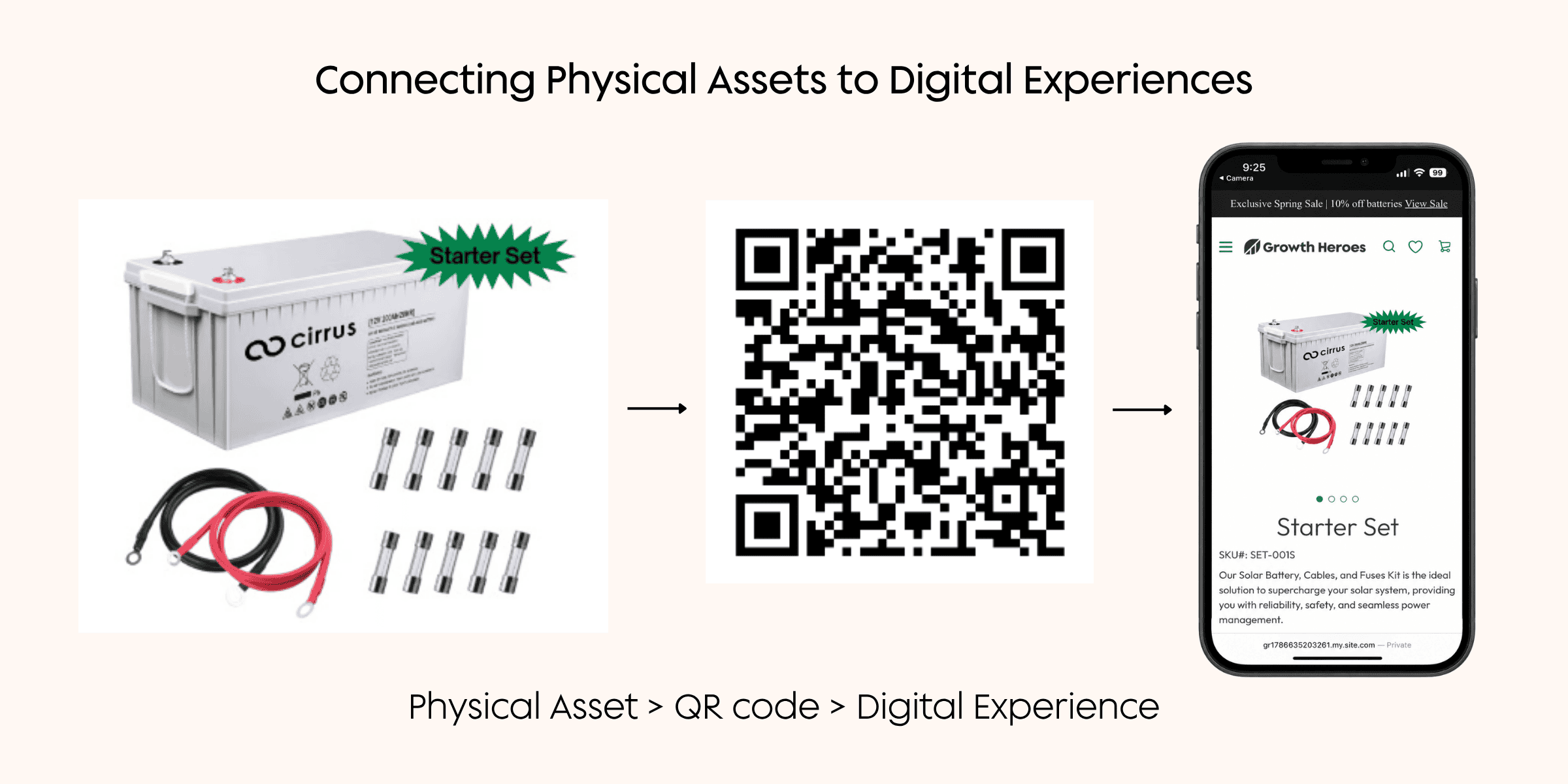
A barcode or QR code can provide a simple connection between a record in Salesforce and an object in the real world. The workflow might look something like this:
Salesforce record → printed label → physical equipment → scan → digital record
A QR code attached to a piece of equipment might take a technician directly to information about that asset, and it could also lead a customer to an Experience Cloud page or another self-service experience.
A QR code can connect a physical product to a mobile digital experience, giving technicians or customers a quick path from the asset itself to relevant product and service information.
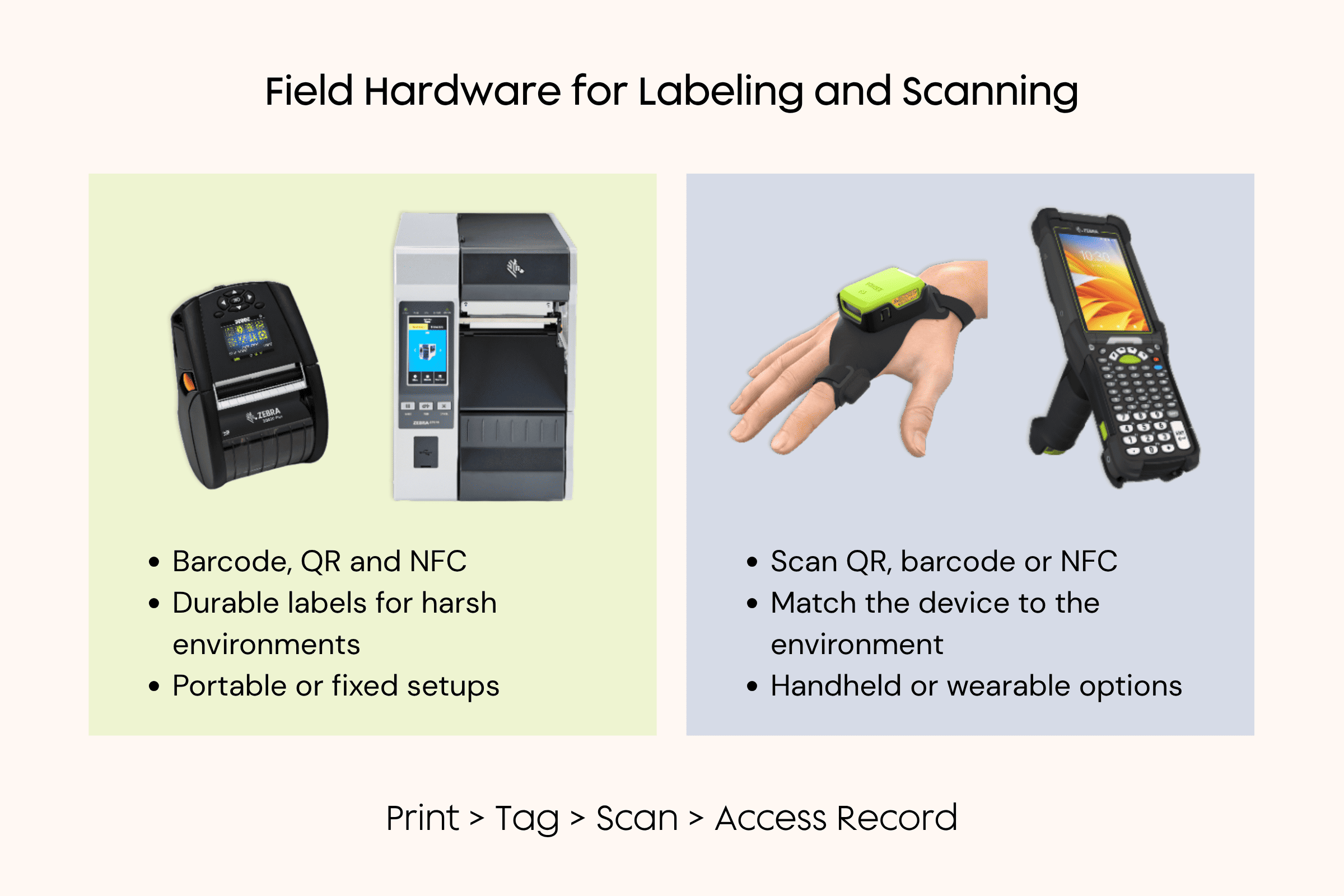
Making that kind of barcode or QR workflow work in practice also depends on the physical hardware around it. Printer choice, label durability, and scanning equipment all affect how reliably teams can connect assets in the field back to Salesforce.
The right field hardware depends on the environment and workflow, from durable label printing to handheld or wearable scanning that connects physical assets back to Salesforce records.
Once you start doing this in real environments, however, the implementation questions get surprisingly physical.
On real client projects, we’ve had to solve for things like:
Will the label be exposed to cleaning chemicals?
Will the equipment be washed or sanitized?
Will it sit outside in direct sunlight?
Does the label need to withstand heat, moisture, or abrasion?
What kind of scanner is practical for the people doing the work?
We learned pretty quickly that choices like label material and scanner type can have a real impact on whether the process works smoothly in the field. They may not sound like traditional CRM decisions, but they become part of the solution once Salesforce is tied to physical equipment and day-to-day operations.
The same goes for scanning hardware. A basic trigger scanner might be perfectly fine in one environment, while someone doing high-volume warehouse picking may need a faster handheld device. In other cases, a wearable scanner or rugged tablet-style device may be the better fit.
Once Salesforce is part of a physical workflow, you have to think about the hardware and software together. The best setup depends on the environment, the type of work, and how people will actually use it day to day.
Example of a connected healthcare asset workflow for one of our clients: barcode scanning links physical equipment to its Salesforce record, while inspection images are stored in AWS and accessed through Salesforce and Experience Cloud.
Images and files become operational data too
Field work often creates information that doesn’t fit neatly into a text field.
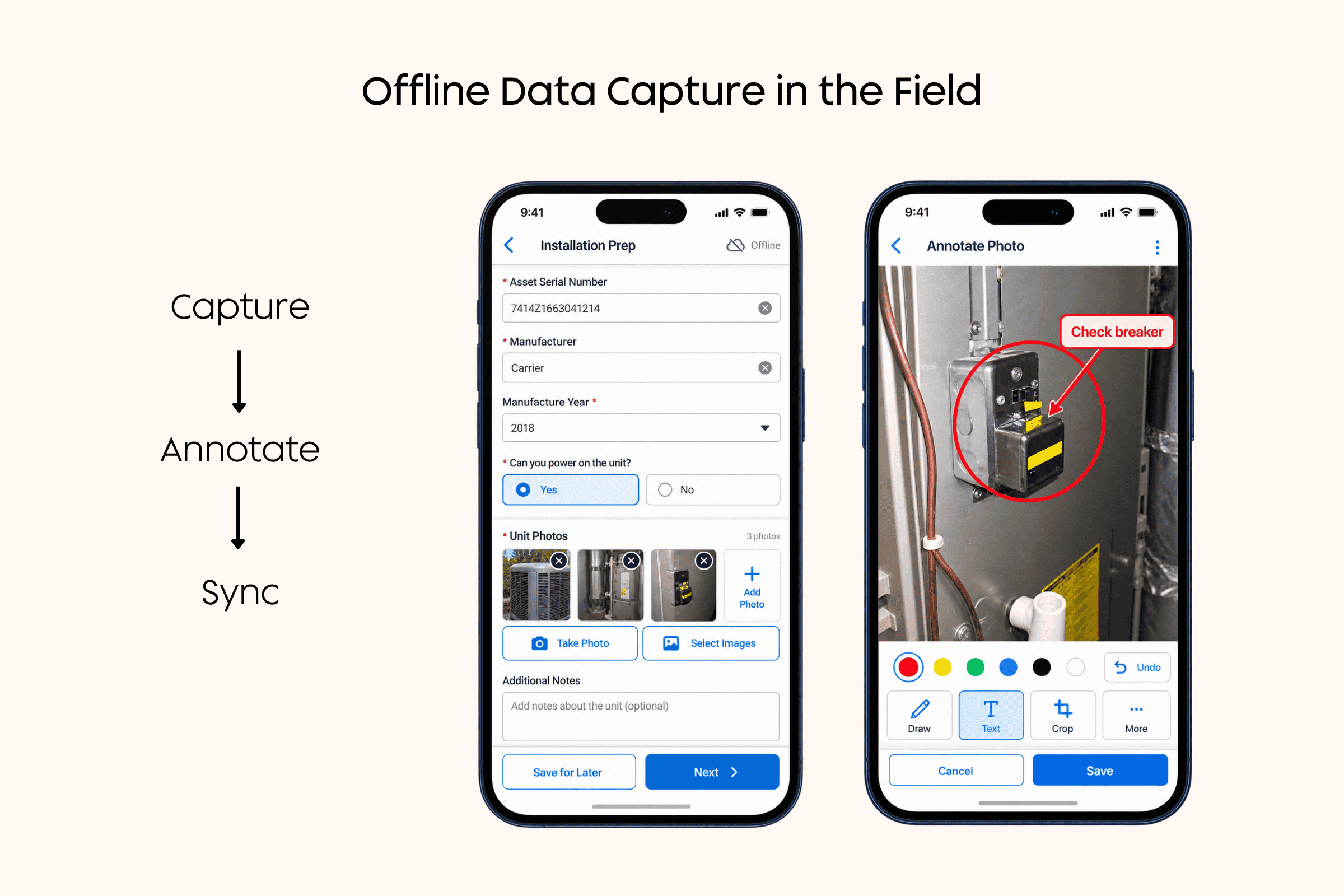
Photos are a good example. Someone in the field may need to document the condition of a piece of equipment, mark up an image to show where the problem is, attach supporting paperwork, or capture proof that a step was completed.
We’ve built custom components for needs like video upload, but Salesforce also has mobile and guided-workflow options for handling images and files. Offline data capture can be especially useful when the work is happening somewhere with limited connectivity. The user can keep moving through the process, add files or images, and sync that information back once the connection returns.
Those files are valuable because of the context they add after the visit. A photo can show the condition of an asset, an annotation can point out exactly what the technician found, and supporting files can give the next person a much clearer picture of what happened.
Over time, that information can become useful for service history, troubleshooting, reporting, and AI-assisted service. We tend to treat it as part of the operational record, rather than as a collection of attachments sitting off to the side.
Offline data capture lets field workers complete guided forms, attach photos, and annotate images even when connectivity is limited, then sync the information back to Salesforce when a connection is available.
Photos, annotations, service history, and asset data all add useful context. The real value comes when that context helps the person in the field make a better decision or complete the work more efficiently.
AI is most useful when it removes friction from the work
Field work gives us a practical way to judge whether an AI feature is actually useful. Technicians are often working under time pressure, moving between locations, handling equipment, and trying to complete a process without stopping to fight with the system.
That makes the value proposition pretty straightforward: does the capability make the work easier to complete?
If it helps someone capture information faster, find the right context, or make a decision with fewer steps, there is a clear reason to use it. If it adds more screens, more cleanup, or more work after the fact, adoption is going to be much harder.
Voice-assisted data entry is a good example of what that can look like in practice.
Voice can reduce form-entry friction
Imagine you’re standing next to a piece of equipment with tools in your hands and need to update several fields in Salesforce.
Stopping to type every value may be possible, but speaking those values may be much more natural.
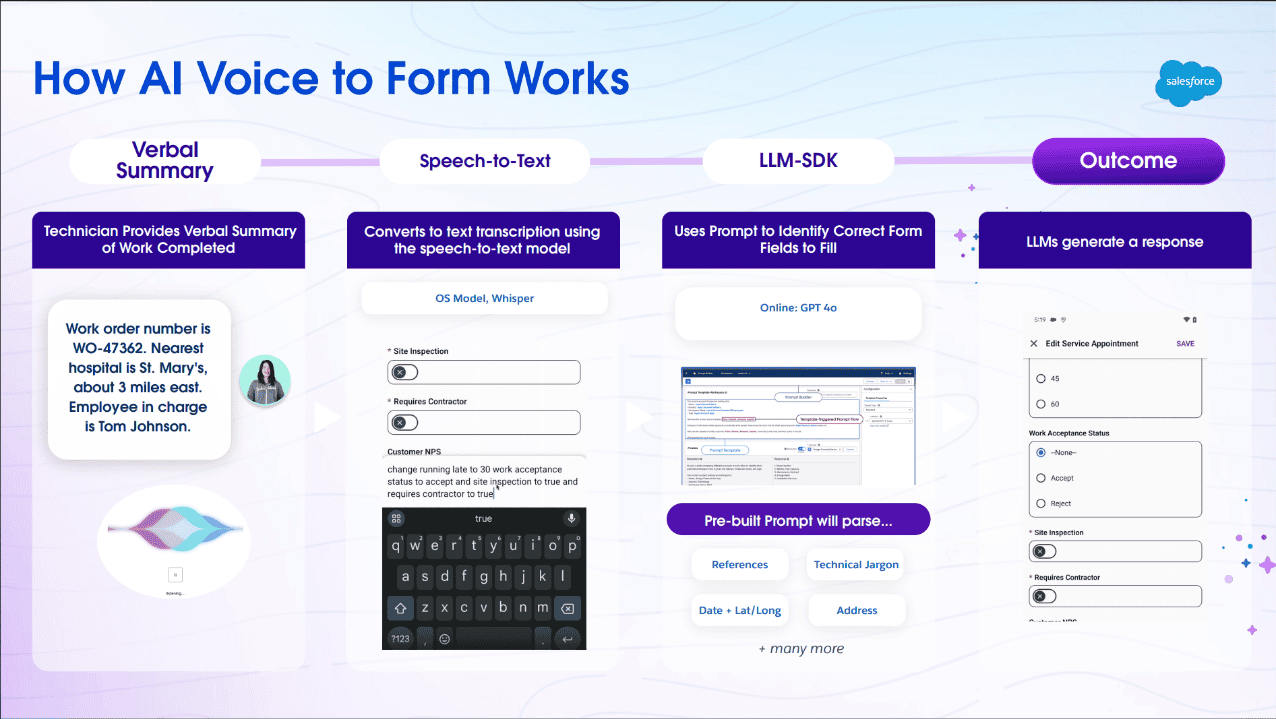
In the voice-to-form experience, a user can say information such as the site type, appointment date, or site name. Speech-to-text captures the instruction, and AI helps determine where that value belongs in the form.
For example, a technician might say: “Make the site type indoors. Make the appointment date October 14. Make the site name Long Beach West.”
The system can then use that information to populate the corresponding fields. However, there are still constraints. In the current experience, users need to specifically identify the field they want to update so the system knows where the spoken value belongs.
Even with that limitation, the direction is interesting. Instead of forcing field workers to adapt themselves to a traditional CRM interface, the interface can start adapting to the way they are already working.
Voice-assisted data entry can turn a technician’s spoken summary into structured Salesforce form updates by combining speech-to-text with AI that identifies the appropriate fields to populate.
AI becomes more powerful when it has asset context
Voice is only one piece of the artificial intelligence opportunity in field service. We’ve also seen how much more useful AI can become when it has access to the history and operating data behind the equipment itself.
In my presentation, I shared examples around asset uptime, usage, equipment behavior, and image-assisted troubleshooting. In a scenario like that, a technician could take a photo of a device and use Agentforce to help investigate the issue while also drawing on other Salesforce context.
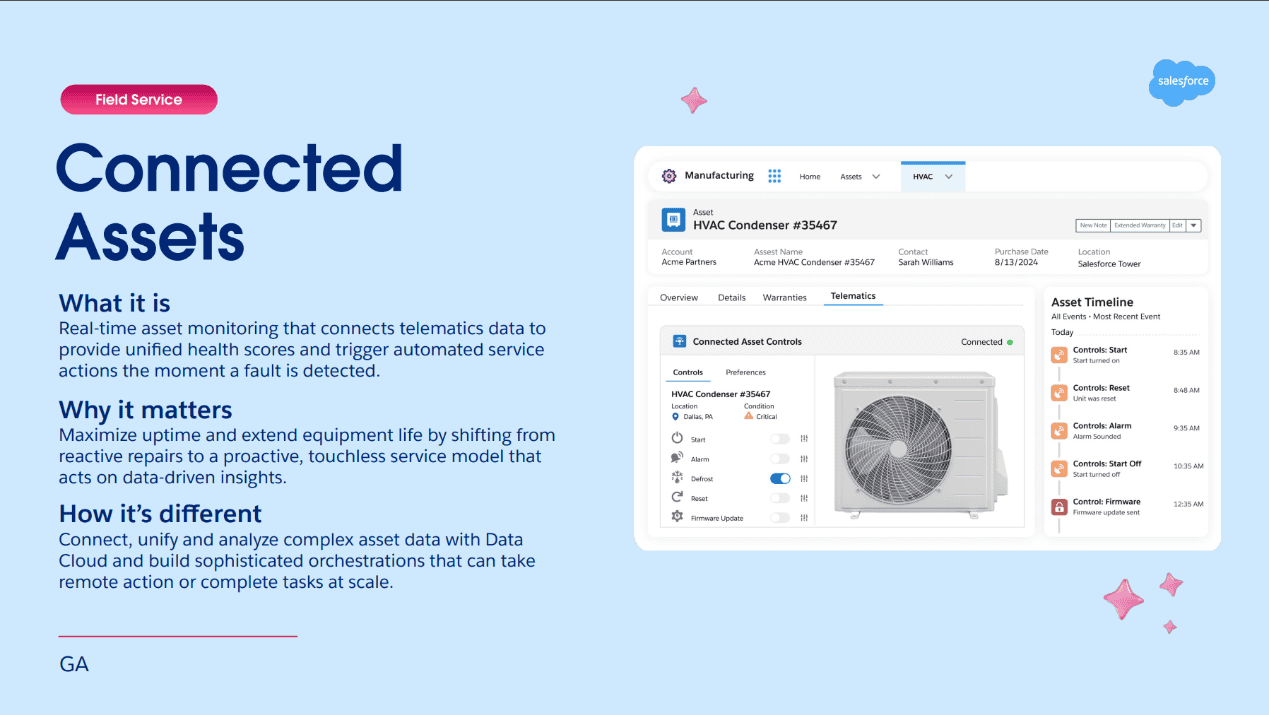
Connected Assets can add yet another layer of information. A refrigerator, washer, industrial device, or other connected piece of equipment can send operating data back into the Salesforce ecosystem, including things like temperature, voltage, runtime, usage, and part-replacement history.
Connected Assets brings live equipment data and controls into Salesforce, giving service teams more context about asset condition, activity, and potential issues before or during a service visit.
That gives your technician a much fuller picture than a simple “customer reported a problem” message. They may be able to see how the equipment has been behaving, what has already been repaired, and whether there are patterns in the data that point to the likely issue.
The more context AI has to work with, the more useful it can become as part of the troubleshooting process. And in our experience, that same context helps the technician too, whether AI is involved or not.
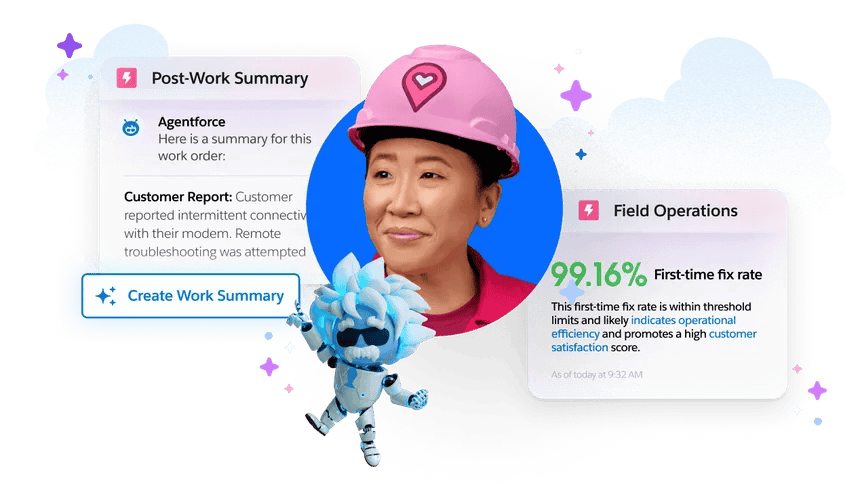
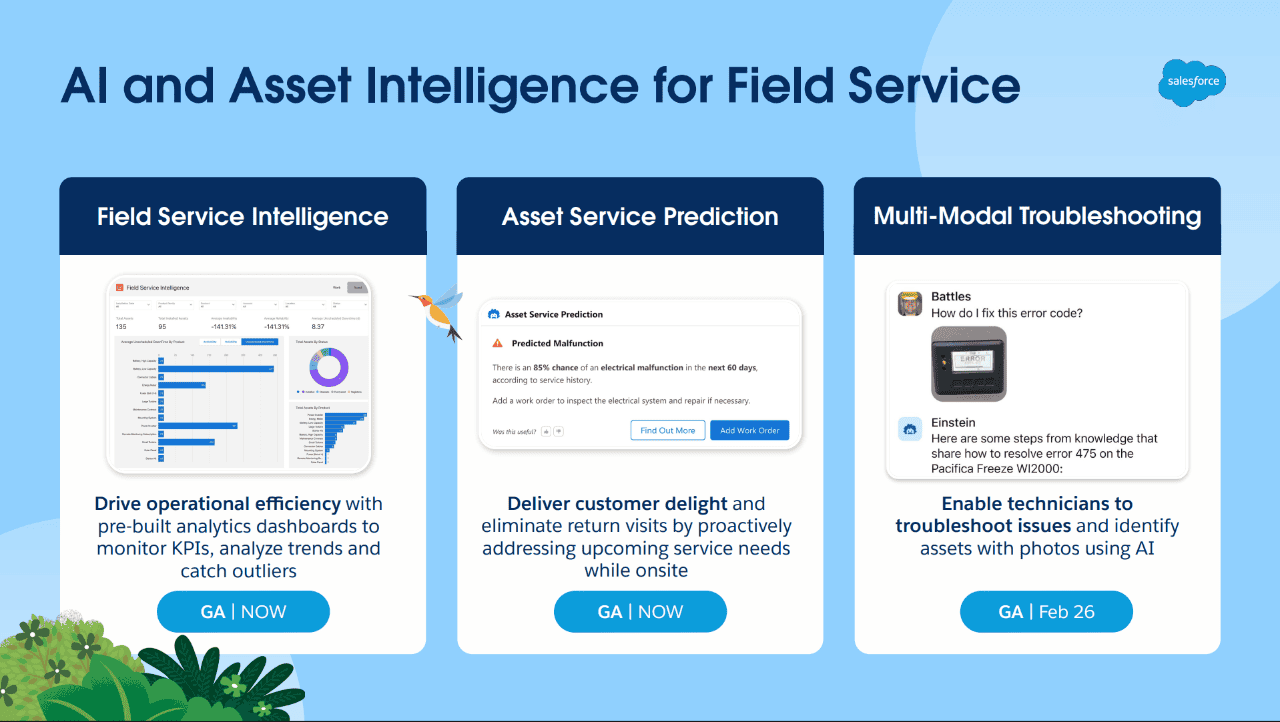
Salesforce brings together field service analytics, predictive asset insights, and AI-assisted troubleshooting to give technicians and service teams more context for diagnosing issues and planning work.
Those capabilities become more useful when AI can draw on connected customer, asset, service, and operational context rather than working from a single record or data source.
A unified Customer 360 requires consolidating systems, conversations, and data into a single source of context for people and AI.
To make that kind of context useful, the underlying data model has to represent the work, the asset, the customer, and the resource relationships clearly.
The experience still depends on the data model
The mobile interface may be what the technician sees, but the quality of that experience depends heavily on the data model supporting it.
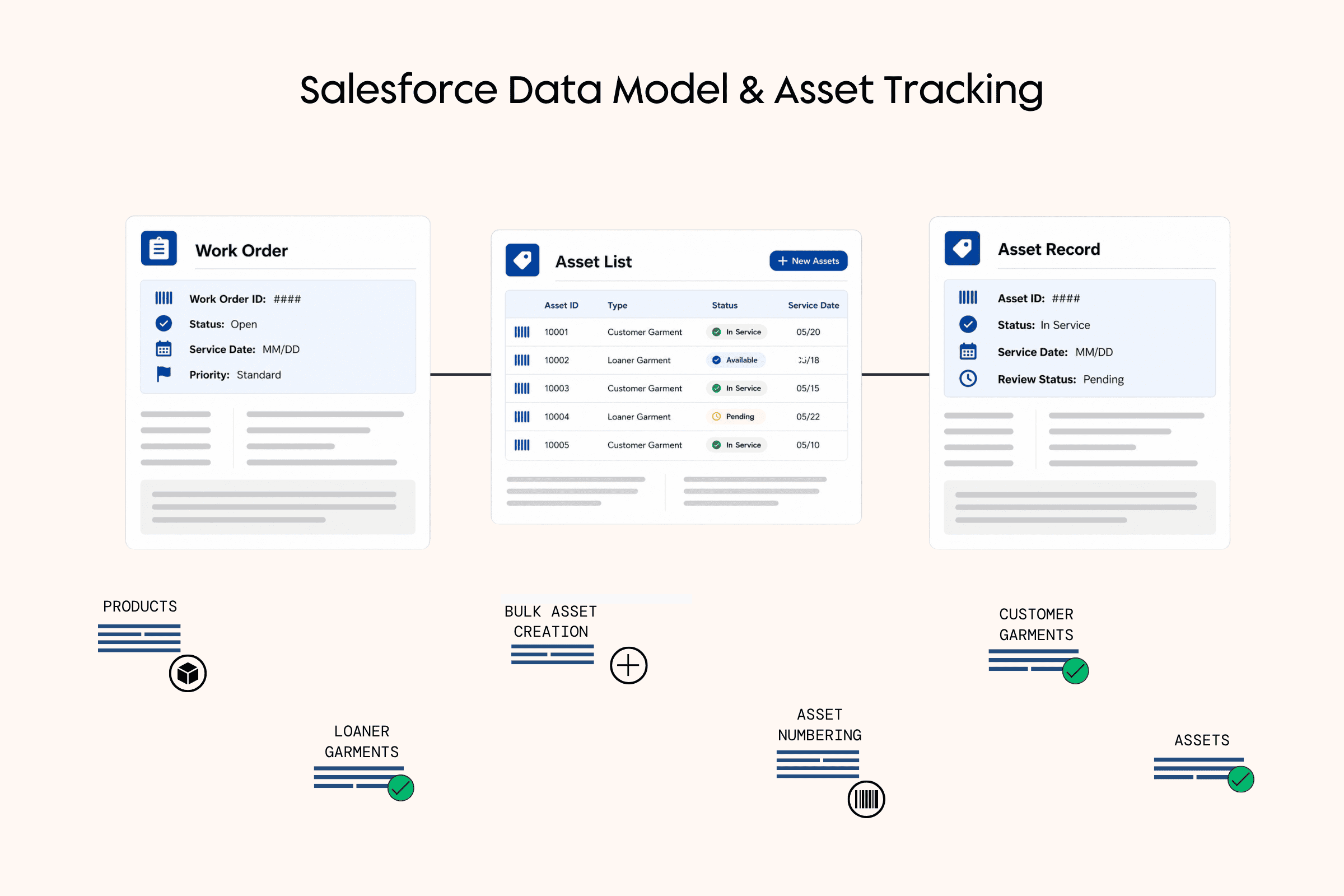
Field Service brings together concepts such as Work Orders, Service Appointments, Service Resources, Service Territories, Assets, and the customer.
Connected Salesforce objects support individual item-level asset tracking, work order activity, asset numbering, and bulk asset creation.
Those relationships influence much more than reporting. In fact, they affect how work gets scheduled, which resources can be assigned, what information appears for technicians, and how automation moves through the process.
A Service Appointment, for example, can connect the work that needs to happen with the territory, customer, and person who will perform it. Resources can then be matched based on factors such as skills, territory, and working hours.
The better the underlying model reflects the real-world operation, the easier it becomes to build useful automation and mobile experiences on top of it.
For this discussion, the important point is simple: the field experience starts long before the technician opens the app.
Going beyond the desk is an architecture decision
When we design Salesforce for teams that spend their days in the field, we have to look well beyond the CRM interface.
We consider where people are working, what they interact with physically, whether connectivity is reliable, how work reaches them, and what information they need when they get there.
Sometimes that leads to Salesforce Mobile, and in other situations it leads to Field Service Mobile, Maps, custom development, barcode hardware, offline workflows, connected assets, or AI-assisted experiences.
In practice, the answer is often a combination of those pieces. Across the projects we’ve worked on, the most successful field solutions tend to connect five things well:
Data → mobile experience → physical interaction → scheduling and orchestration → AI-assisted work
When those elements reinforce one another, Salesforce can support much more than the people sitting behind a desk. It can become part of how work gets done wherever your employees, customers, equipment, and operations happen to be.
Take Salesforce beyond the desk
If your Salesforce environment needs to support technicians, distributed field teams, physical assets, or offline processes, Growth Heroes can help you determine the right mix of Field Service, mobile, integration, and automation capabilities for the way your teams actually work.